> ## Documentation Index
> Fetch the complete documentation index at: https://docs.sixtyfour.ai/llms.txt
> Use this file to discover all available pages before exploring further.
# Automated Workflows
> Run any workflow on a recurring schedule using the built-in workflow scheduler.
Only Enterprise plan customers can create workflows with schedules in the Sixtyfour Platform.
Schedules turn any workflow into a recurring job that runs without manual intervention. Use them to keep enrichment lists fresh, send daily prospect digests, refresh CRM data on a cadence, or trigger any pipeline on a fixed interval.
Schedules are configured per-workflow in the [Workflow Editor](https://app.sixtyfour.ai/workflows/new). Each run is tracked with a status, job ID, and next-run timestamp.
You can also programmatically trigger workflows using the Workflows API. See [Programmatic Workflows](/guides/programmatic-workflows) for more details.
## Why automate workflows
| Use case | Example schedule |
| ---------------------------- | ---------------------------------------------------------------------------------------------------- |
| Keep a prospect list current | Daily at 9:00 AM — search for new accounts matching your ICP and append to a notebook |
| Refresh CRM enrichment | Weekly Monday 9:00 AM — pull HubSpot contacts, re-enrich, push back |
| Monitor a market | Every hour — scrape a competitor's careers page and send new roles to Slack |
| Backfill data overnight | Custom `0 2 * * *` — run heavier enrichment when credits and latency don't compete with daytime work |
Schedules pair naturally with the **Deduplicate with Notebook** block, which prevents recurring runs from saving the same row twice. See [Building Workflows](/guides/building-workflows) for the full block reference.
## Prerequisites
* A completed workflow. Schedules attach to a `workflow_id`, so a draft workflow with no ID cannot be scheduled.
## Open the schedules panel
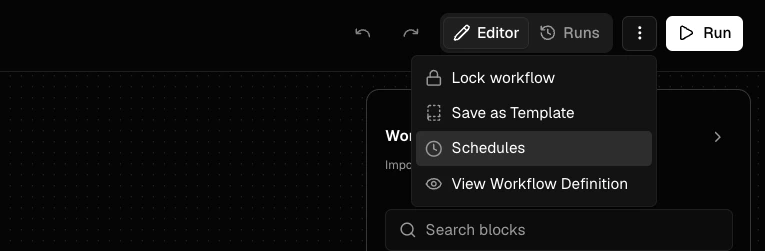
From the [Workflow Editor](https://app.sixtyfour.ai/workflows/new), click the overflow menu (`···`) next to the **Run** button and select **Schedules**.
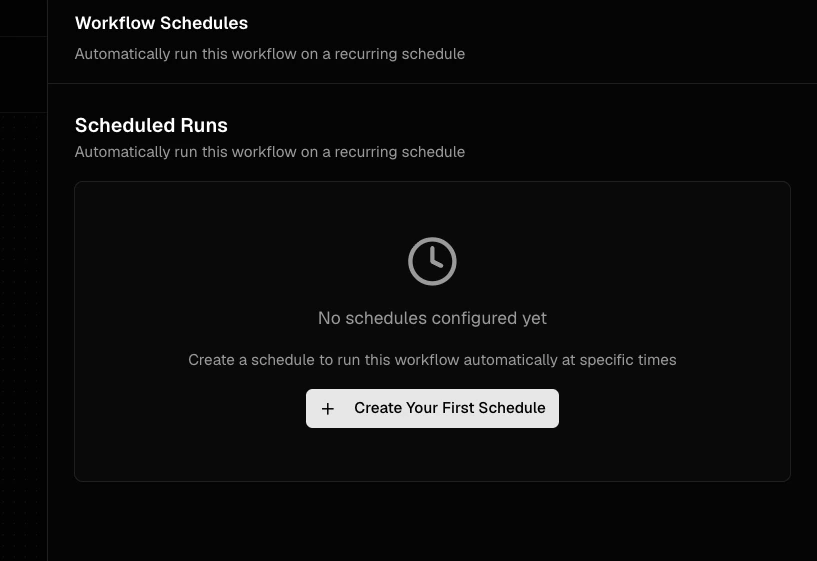
 If the workflow has no schedules yet, the panel shows an empty state. Click **Create Your First Schedule** to open the dialog.
 ## Create a schedule
The Create Schedule dialog has two ways to define when the workflow runs: common presets or a custom cron expression.
### Use a common preset
The **Common Schedules** tab covers the most frequent cadences. Pick one from the dropdown and the dialog shows a preview of the next three run times in your selected timezone.
## Create a schedule
The Create Schedule dialog has two ways to define when the workflow runs: common presets or a custom cron expression.
### Use a common preset
The **Common Schedules** tab covers the most frequent cadences. Pick one from the dropdown and the dialog shows a preview of the next three run times in your selected timezone.
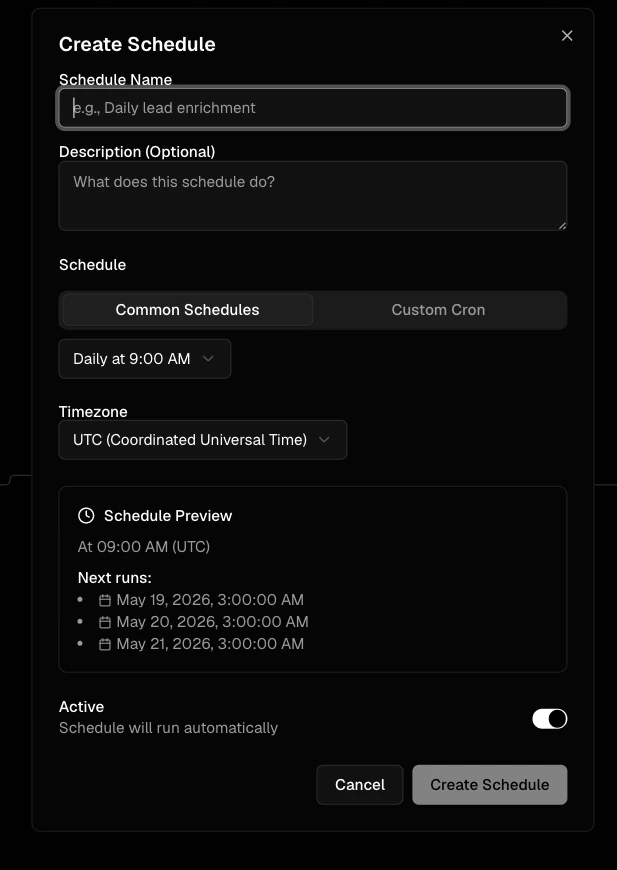 Available presets:
* Every 15 minutes
* Every 30 minutes
* Every hour
* Daily at 9:00 AM
* Every weekday at 9:00 AM
* Every Monday at 9:00 AM
* Weekly (Monday 9:00 AM)
* Monthly (1st at 9:00 AM)
### Use a custom cron expression
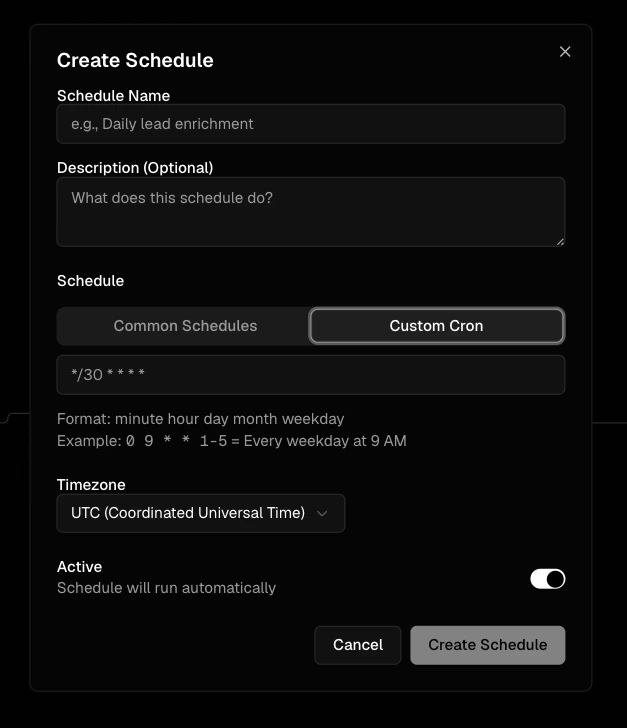
Switch to the **Custom Cron** tab for anything outside the presets. Sixtyfour uses standard 5-field cron syntax: `minute hour day month weekday`.
Available presets:
* Every 15 minutes
* Every 30 minutes
* Every hour
* Daily at 9:00 AM
* Every weekday at 9:00 AM
* Every Monday at 9:00 AM
* Weekly (Monday 9:00 AM)
* Monthly (1st at 9:00 AM)
### Use a custom cron expression
Switch to the **Custom Cron** tab for anything outside the presets. Sixtyfour uses standard 5-field cron syntax: `minute hour day month weekday`.
 | Field | Range |
| ------------ | ---------------- |
| minute | 0–59 |
| hour | 0–23 |
| day of month | 1–31 |
| month | 1–12 |
| day of week | 0–6 (Sunday = 0) |
Common patterns:
* `*/30 * * * *` — every 30 minutes
* `0 9 * * 1-5` — every weekday at 9:00 AM
* `0 */4 * * *` — every 4 hours on the hour
* `0 2 1 * *` — 2:00 AM on the 1st of every month
The dialog validates the expression as you type and shows a human-readable summary plus the next three run times once it's valid.
### Required fields
| Field | Notes |
| ------------- | -------------------------------------------------------------------- |
| Schedule Name | Required. Shown in the schedules list and run history. |
| Description | Optional. Helps distinguish multiple schedules on the same workflow. |
| Schedule | Preset or custom cron expression. |
| Timezone | Defaults to UTC. Cron expressions evaluate against this timezone. |
| Active | When off, the schedule is saved but won't run until re-enabled. |
Click **Create Schedule** to save. The schedule appears in the schedules list with its next run time.
## Manage existing schedules
Each schedule in the list shows its name, status badge (`Active` or `Paused`), human-readable cadence, next run time, and last run status. Per-schedule controls:
* Active toggle — pause or resume the schedule without deleting it.
* Edit — change the name, cadence, timezone, or active state.
* Delete — permanently remove the schedule. The workflow itself is not affected.
A workflow can have multiple schedules — for example, an hourly run on weekdays and a single weekly run on Sundays.
Workflows that begin with an Incoming Webhooks block expect external payloads and aren't a fit for time-based schedules. For those, trigger runs via the [Workflows API](/api-reference/workflows/workflows-execution) instead.
## Billing
Scheduled runs are billed against your organization the same way manual runs are. See [Credits & Pricing](/guides/credits-and-pricing) for cost details.
## Tips
* Stagger heavy workflows that share an hourly cadence. Schedules that all fire at `:00` create a load spike — offset them (`5 * * * *`, `15 * * * *`) to smooth credit usage.
* Add a Deduplicate with Notebook block to any recurring workflow that writes to a notebook. It prevents the same row from being re-saved on every run.
* Set the timezone to your team's timezone. A schedule named "Daily at 9 AM" only matches your team's morning if the timezone is set correctly. UTC is the default.
* Pause schedules instead of deleting them while iterating on a workflow — you keep the history and configuration.
| Field | Range |
| ------------ | ---------------- |
| minute | 0–59 |
| hour | 0–23 |
| day of month | 1–31 |
| month | 1–12 |
| day of week | 0–6 (Sunday = 0) |
Common patterns:
* `*/30 * * * *` — every 30 minutes
* `0 9 * * 1-5` — every weekday at 9:00 AM
* `0 */4 * * *` — every 4 hours on the hour
* `0 2 1 * *` — 2:00 AM on the 1st of every month
The dialog validates the expression as you type and shows a human-readable summary plus the next three run times once it's valid.
### Required fields
| Field | Notes |
| ------------- | -------------------------------------------------------------------- |
| Schedule Name | Required. Shown in the schedules list and run history. |
| Description | Optional. Helps distinguish multiple schedules on the same workflow. |
| Schedule | Preset or custom cron expression. |
| Timezone | Defaults to UTC. Cron expressions evaluate against this timezone. |
| Active | When off, the schedule is saved but won't run until re-enabled. |
Click **Create Schedule** to save. The schedule appears in the schedules list with its next run time.
## Manage existing schedules
Each schedule in the list shows its name, status badge (`Active` or `Paused`), human-readable cadence, next run time, and last run status. Per-schedule controls:
* Active toggle — pause or resume the schedule without deleting it.
* Edit — change the name, cadence, timezone, or active state.
* Delete — permanently remove the schedule. The workflow itself is not affected.
A workflow can have multiple schedules — for example, an hourly run on weekdays and a single weekly run on Sundays.
Workflows that begin with an Incoming Webhooks block expect external payloads and aren't a fit for time-based schedules. For those, trigger runs via the [Workflows API](/api-reference/workflows/workflows-execution) instead.
## Billing
Scheduled runs are billed against your organization the same way manual runs are. See [Credits & Pricing](/guides/credits-and-pricing) for cost details.
## Tips
* Stagger heavy workflows that share an hourly cadence. Schedules that all fire at `:00` create a load spike — offset them (`5 * * * *`, `15 * * * *`) to smooth credit usage.
* Add a Deduplicate with Notebook block to any recurring workflow that writes to a notebook. It prevents the same row from being re-saved on every run.
* Set the timezone to your team's timezone. A schedule named "Daily at 9 AM" only matches your team's morning if the timezone is set correctly. UTC is the default.
* Pause schedules instead of deleting them while iterating on a workflow — you keep the history and configuration.