> ## Documentation Index
> Fetch the complete documentation index at: https://docs.sixtyfour.ai/llms.txt
> Use this file to discover all available pages before exploring further.
# Using OAuth Clients
> Set up an OAuth client in the Sixtyfour dashboard for server-to-server authentication without sharing long-lived API keys.
Set up an OAuth client to authenticate server-to-server requests with a short-lived, signed JWT assertion instead of a long-lived API key. Sixtyfour verifies your JWT against a public key you register directly or via a JWKS URL — there is no client secret.
| Property | Value |
| ----------------- | ----------------------------------------------------------------- |
| Grant type | `client_credentials` |
| Client auth | `private_key_jwt` |
| Signing algorithm | `RS256` |
| Scope | `full_access` |
| Token URL | `https://api.sixtyfour.ai/oauth/token` |
| Discovery URL | `https://api.sixtyfour.ai/.well-known/oauth-authorization-server` |
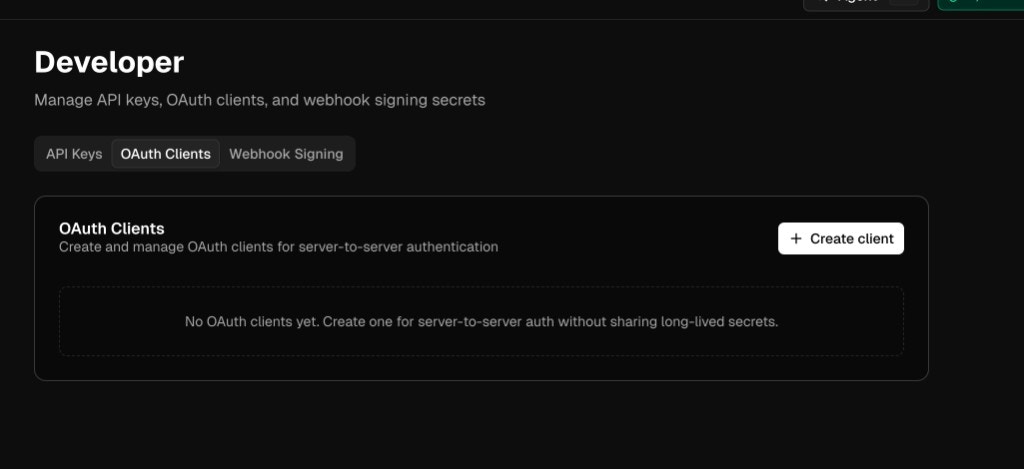
## Step 1: Go to OAuth Clients
Go to [Settings → OAuth Clients](https://app.sixtyfour.ai/settings/oauth-clients).
 ## Step 2: Create a client
1. Click **Create client**
2. Enter a **Client Name** (for example, `my-production-app`)
3. Optionally enter a **JWKS URL** — a public HTTPS endpoint that serves your JSON Web Key Set
The JWKS choice is permanent. Provide a JWKS URL for automatic key discovery and rotation, or leave it blank to upload public keys manually. You cannot switch modes after creation.
4. Click **Create and continue**
Sixtyfour generates a `client_id` and drops you into the client detail view.
## Step 3: Configure your key
Pick the flow that matches how you created the client.
### Option A — JWKS URL
If you configured a JWKS URL, Sixtyfour fetches your public keys from that endpoint automatically. Validate it at any time:
1. On the client detail page, click **Validate JWKS**
2. Confirm the health indicator shows a green check and a recent validation timestamp
### Option B — Upload a public key
If you did not set a JWKS URL, generate an RSA key pair and upload the public half:
```bash theme={null}
openssl genrsa -out private.pem 2048
openssl rsa -in private.pem -pubout -out public.pem
```
1. Click **Upload key**
2. Paste the contents of `public.pem` (including the `-----BEGIN PUBLIC KEY-----` and `-----END PUBLIC KEY-----` lines)
3. Click **Upload key**
Copy the generated **Key ID** (`kid`) — you'll include it in the JWT header.
Keep `private.pem` on the server that signs assertions. Never commit it or send it to a browser.
## Step 4: Request an access token
Your server signs a short-lived JWT assertion with the private key, then POSTs it to the token endpoint.
```python Python theme={null}
import jwt, time, uuid, requests
# pip install PyJWT cryptography requests
CLIENT_ID = "YOUR_CLIENT_ID"
KEY_ID = "YOUR_KEY_ID"
TOKEN_URL = "https://api.sixtyfour.ai/oauth/token"
ISSUER = TOKEN_URL.replace("/oauth/token", "") # or fetch from discovery
# Load your private key (keep this secret, never commit it)
with open("private.pem") as f:
private_key = f.read()
# Build the signed JWT assertion
now = int(time.time())
assertion = jwt.encode(
{
"iss": CLIENT_ID,
"sub": CLIENT_ID,
"aud": ISSUER,
"iat": now,
"exp": now + 60,
"jti": str(uuid.uuid4()),
},
private_key,
algorithm="RS256",
headers={"kid": KEY_ID},
)
# Exchange for an access token
resp = requests.post(TOKEN_URL, data={
"grant_type": "client_credentials",
"client_id": CLIENT_ID,
"client_assertion_type": "urn:ietf:params:oauth:client-assertion-type:jwt-bearer",
"client_assertion": assertion,
"scope": "full_access",
})
access_token = resp.json()["access_token"]
print("Access token:", access_token)
```
```javascript JavaScript theme={null}
import jwt from "jsonwebtoken";
import { randomUUID } from "node:crypto";
import { readFileSync } from "node:fs";
const CLIENT_ID = "YOUR_CLIENT_ID";
const KEY_ID = "YOUR_KEY_ID";
const TOKEN_URL = "https://api.sixtyfour.ai/oauth/token";
const ISSUER = "https://api.sixtyfour.ai";
const privateKey = readFileSync("private.pem", "utf8");
const now = Math.floor(Date.now() / 1000);
const assertion = jwt.sign(
{
iss: CLIENT_ID,
sub: CLIENT_ID,
aud: ISSUER,
iat: now,
exp: now + 60,
jti: randomUUID(),
},
privateKey,
{ algorithm: "RS256", header: { kid: KEY_ID } },
);
const body = new URLSearchParams({
grant_type: "client_credentials",
client_id: CLIENT_ID,
client_assertion_type:
"urn:ietf:params:oauth:client-assertion-type:jwt-bearer",
client_assertion: assertion,
scope: "full_access",
});
const resp = await fetch(TOKEN_URL, {
method: "POST",
headers: { "Content-Type": "application/x-www-form-urlencoded" },
body,
});
const { access_token } = await resp.json();
console.log("Access token:", access_token);
```
The response contains a bearer token:
```json theme={null}
{
"access_token": "eyJhbGciOi...",
"token_type": "Bearer",
"expires_in": 3600,
"scope": "full_access"
}
```
## Step 5: Call the API
Send the token in the `Authorization` header on any Sixtyfour API request:
```http theme={null}
Authorization: Bearer YOUR_ACCESS_TOKEN
Content-Type: application/json
```
OAuth access tokens work on all endpoints that accept `x-api-key`. Do not send both headers on the same request. Run the token exchange server-side only — never from a browser.
## Managing a client
The client detail page exposes everything you need after setup.
### Adjust token TTL
Change **Token TTL** to control how long issued access tokens stay valid. Options are 1 minute, 5 minutes, 1 hour, or 24 hours. Shorter TTLs reduce blast radius if a token is leaked.
### Rotate keys
If you configured a JWKS URL, publish the new key in your JWKS document and click **Validate JWKS**. Sixtyfour picks up the new `kid` automatically on the next fetch.
If you uploaded a public key directly, upload the new key, switch your signer to the new `kid`, then revoke the old key from the Public Keys table.
### Permanently disable a client
Clicking **Disable** is irreversible: it immediately invalidates all outstanding tokens and the client cannot be re-enabled. If you only need a temporary pause, rotate keys instead. To restore access after disabling, create a new client.
### Delete a client
Use the trash icon on the detail page header. Deleting revokes all tokens and keys for that client and cannot be undone.
## Step 2: Create a client
1. Click **Create client**
2. Enter a **Client Name** (for example, `my-production-app`)
3. Optionally enter a **JWKS URL** — a public HTTPS endpoint that serves your JSON Web Key Set
The JWKS choice is permanent. Provide a JWKS URL for automatic key discovery and rotation, or leave it blank to upload public keys manually. You cannot switch modes after creation.
4. Click **Create and continue**
Sixtyfour generates a `client_id` and drops you into the client detail view.
## Step 3: Configure your key
Pick the flow that matches how you created the client.
### Option A — JWKS URL
If you configured a JWKS URL, Sixtyfour fetches your public keys from that endpoint automatically. Validate it at any time:
1. On the client detail page, click **Validate JWKS**
2. Confirm the health indicator shows a green check and a recent validation timestamp
### Option B — Upload a public key
If you did not set a JWKS URL, generate an RSA key pair and upload the public half:
```bash theme={null}
openssl genrsa -out private.pem 2048
openssl rsa -in private.pem -pubout -out public.pem
```
1. Click **Upload key**
2. Paste the contents of `public.pem` (including the `-----BEGIN PUBLIC KEY-----` and `-----END PUBLIC KEY-----` lines)
3. Click **Upload key**
Copy the generated **Key ID** (`kid`) — you'll include it in the JWT header.
Keep `private.pem` on the server that signs assertions. Never commit it or send it to a browser.
## Step 4: Request an access token
Your server signs a short-lived JWT assertion with the private key, then POSTs it to the token endpoint.
```python Python theme={null}
import jwt, time, uuid, requests
# pip install PyJWT cryptography requests
CLIENT_ID = "YOUR_CLIENT_ID"
KEY_ID = "YOUR_KEY_ID"
TOKEN_URL = "https://api.sixtyfour.ai/oauth/token"
ISSUER = TOKEN_URL.replace("/oauth/token", "") # or fetch from discovery
# Load your private key (keep this secret, never commit it)
with open("private.pem") as f:
private_key = f.read()
# Build the signed JWT assertion
now = int(time.time())
assertion = jwt.encode(
{
"iss": CLIENT_ID,
"sub": CLIENT_ID,
"aud": ISSUER,
"iat": now,
"exp": now + 60,
"jti": str(uuid.uuid4()),
},
private_key,
algorithm="RS256",
headers={"kid": KEY_ID},
)
# Exchange for an access token
resp = requests.post(TOKEN_URL, data={
"grant_type": "client_credentials",
"client_id": CLIENT_ID,
"client_assertion_type": "urn:ietf:params:oauth:client-assertion-type:jwt-bearer",
"client_assertion": assertion,
"scope": "full_access",
})
access_token = resp.json()["access_token"]
print("Access token:", access_token)
```
```javascript JavaScript theme={null}
import jwt from "jsonwebtoken";
import { randomUUID } from "node:crypto";
import { readFileSync } from "node:fs";
const CLIENT_ID = "YOUR_CLIENT_ID";
const KEY_ID = "YOUR_KEY_ID";
const TOKEN_URL = "https://api.sixtyfour.ai/oauth/token";
const ISSUER = "https://api.sixtyfour.ai";
const privateKey = readFileSync("private.pem", "utf8");
const now = Math.floor(Date.now() / 1000);
const assertion = jwt.sign(
{
iss: CLIENT_ID,
sub: CLIENT_ID,
aud: ISSUER,
iat: now,
exp: now + 60,
jti: randomUUID(),
},
privateKey,
{ algorithm: "RS256", header: { kid: KEY_ID } },
);
const body = new URLSearchParams({
grant_type: "client_credentials",
client_id: CLIENT_ID,
client_assertion_type:
"urn:ietf:params:oauth:client-assertion-type:jwt-bearer",
client_assertion: assertion,
scope: "full_access",
});
const resp = await fetch(TOKEN_URL, {
method: "POST",
headers: { "Content-Type": "application/x-www-form-urlencoded" },
body,
});
const { access_token } = await resp.json();
console.log("Access token:", access_token);
```
The response contains a bearer token:
```json theme={null}
{
"access_token": "eyJhbGciOi...",
"token_type": "Bearer",
"expires_in": 3600,
"scope": "full_access"
}
```
## Step 5: Call the API
Send the token in the `Authorization` header on any Sixtyfour API request:
```http theme={null}
Authorization: Bearer YOUR_ACCESS_TOKEN
Content-Type: application/json
```
OAuth access tokens work on all endpoints that accept `x-api-key`. Do not send both headers on the same request. Run the token exchange server-side only — never from a browser.
## Managing a client
The client detail page exposes everything you need after setup.
### Adjust token TTL
Change **Token TTL** to control how long issued access tokens stay valid. Options are 1 minute, 5 minutes, 1 hour, or 24 hours. Shorter TTLs reduce blast radius if a token is leaked.
### Rotate keys
If you configured a JWKS URL, publish the new key in your JWKS document and click **Validate JWKS**. Sixtyfour picks up the new `kid` automatically on the next fetch.
If you uploaded a public key directly, upload the new key, switch your signer to the new `kid`, then revoke the old key from the Public Keys table.
### Permanently disable a client
Clicking **Disable** is irreversible: it immediately invalidates all outstanding tokens and the client cannot be re-enabled. If you only need a temporary pause, rotate keys instead. To restore access after disabling, create a new client.
### Delete a client
Use the trash icon on the detail page header. Deleting revokes all tokens and keys for that client and cannot be undone.