> ## Documentation Index
> Fetch the complete documentation index at: https://docs.sixtyfour.ai/llms.txt
> Use this file to discover all available pages before exploring further.
# Ashby Integration
> Import job applicants from Ashby into Sixtyfour workflows to enrich and rank them.
Connect Ashby to Sixtyfour to import job applicants into a workflow, then enrich, score, and export them. Sixtyfour only reads from Ashby. It never changes or writes back to your Ashby data.
The Ashby integration is in early access. Contact [support@sixtyfour.ai](mailto:support@sixtyfour.ai) to turn it on for your organization.
## What Sixtyfour reads
The API key created from the Sixty Four tile in Ashby has read access to two Ashby modules.
| Ashby module | What Sixtyfour reads |
| - | - |
| Jobs | Open jobs, their titles, and job posting descriptions |
| Candidates | Applications (status, interview stage, applied date, source), candidate profiles (name, email, phone, social links, current title, company, school, location), and résumé files |
Sixtyfour reads Ashby only when you connect a key, pick jobs in the Import Data block, or run a workflow.
## Create an API key in Ashby
You need Admin access in Ashby to create the key.
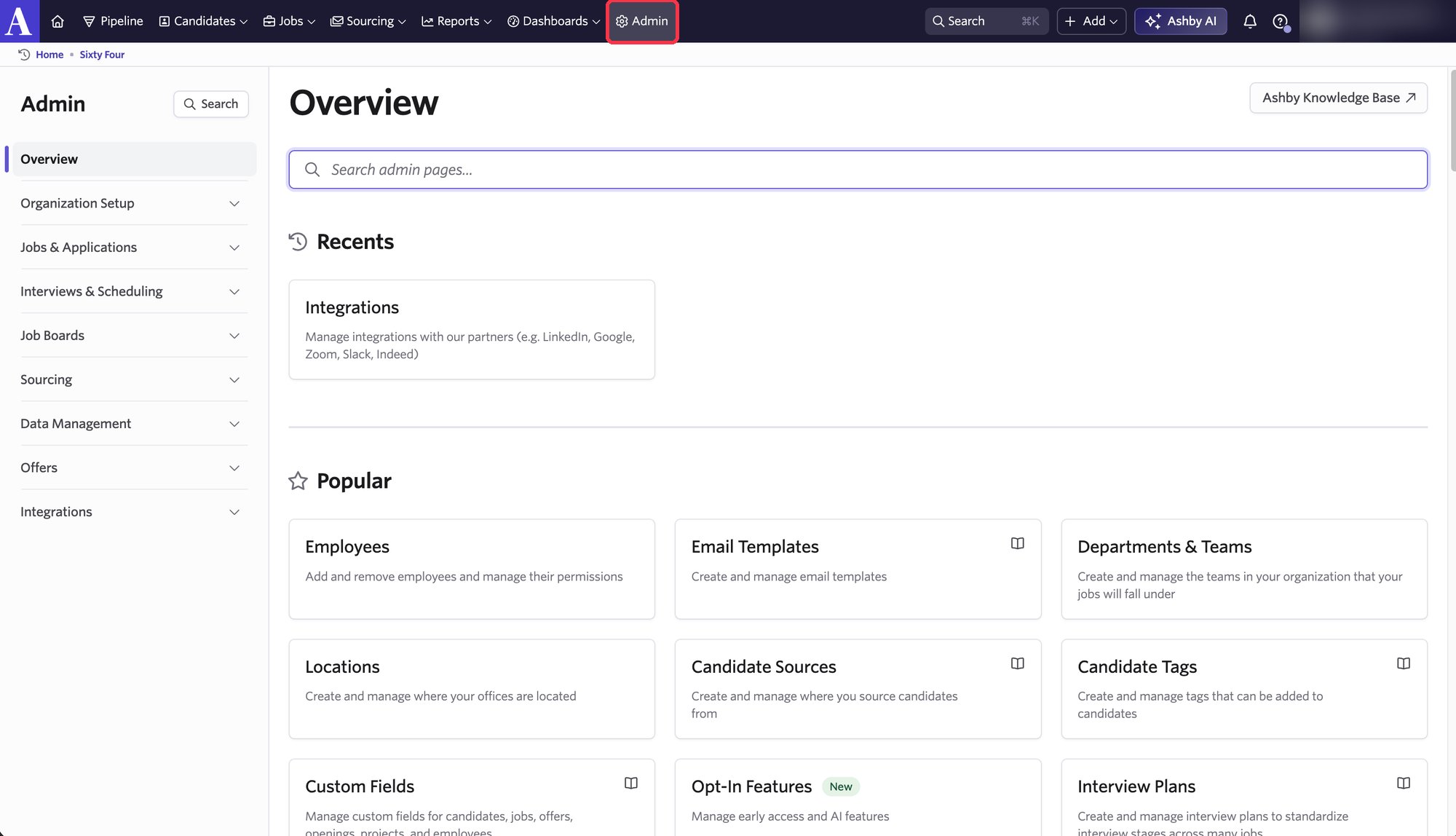
Sign in to [Ashby](https://app.ashbyhq.com) and click **Admin** in the top navigation bar.
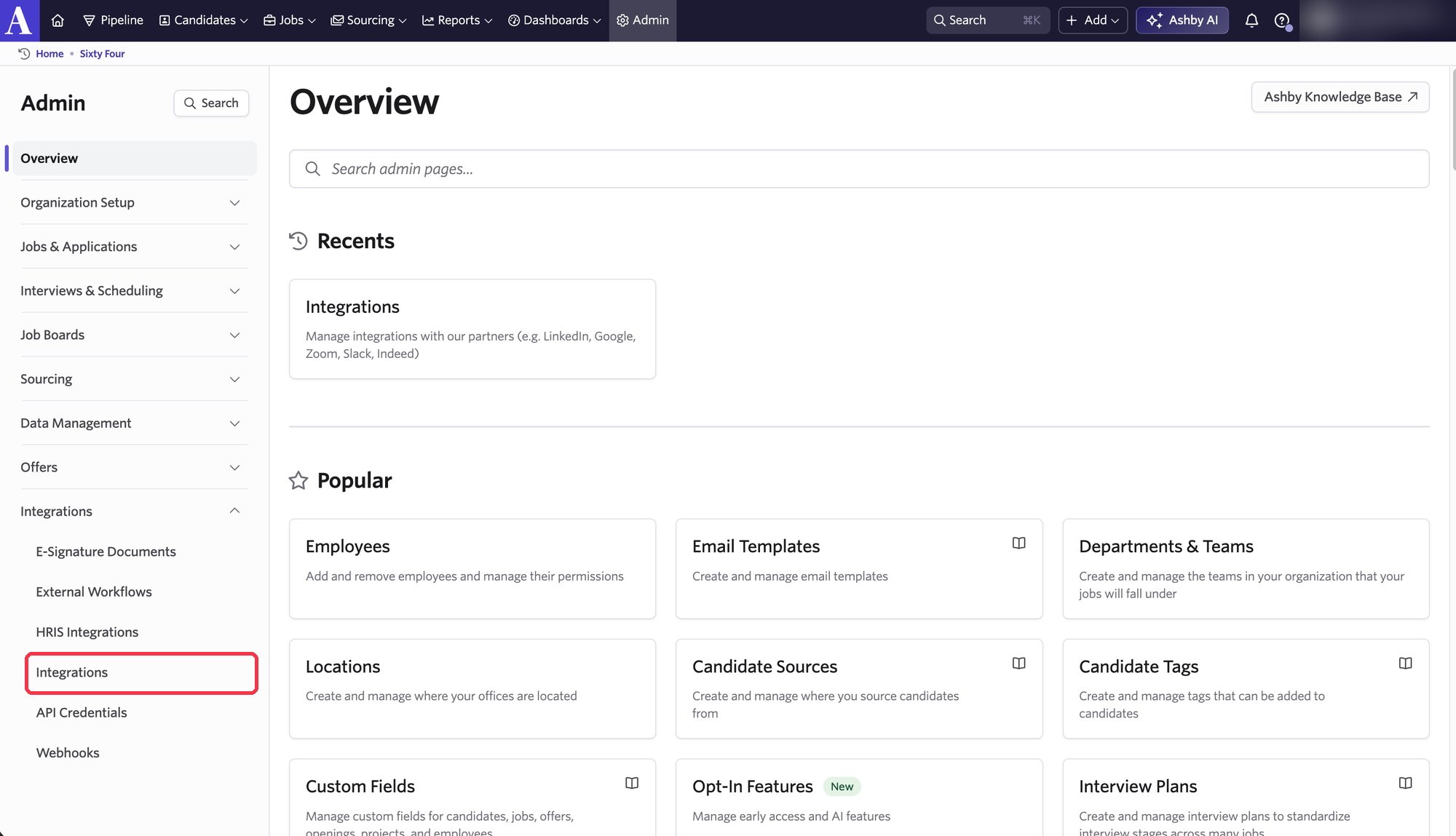
 In the left panel, open **Integrations** and click **Integrations**.
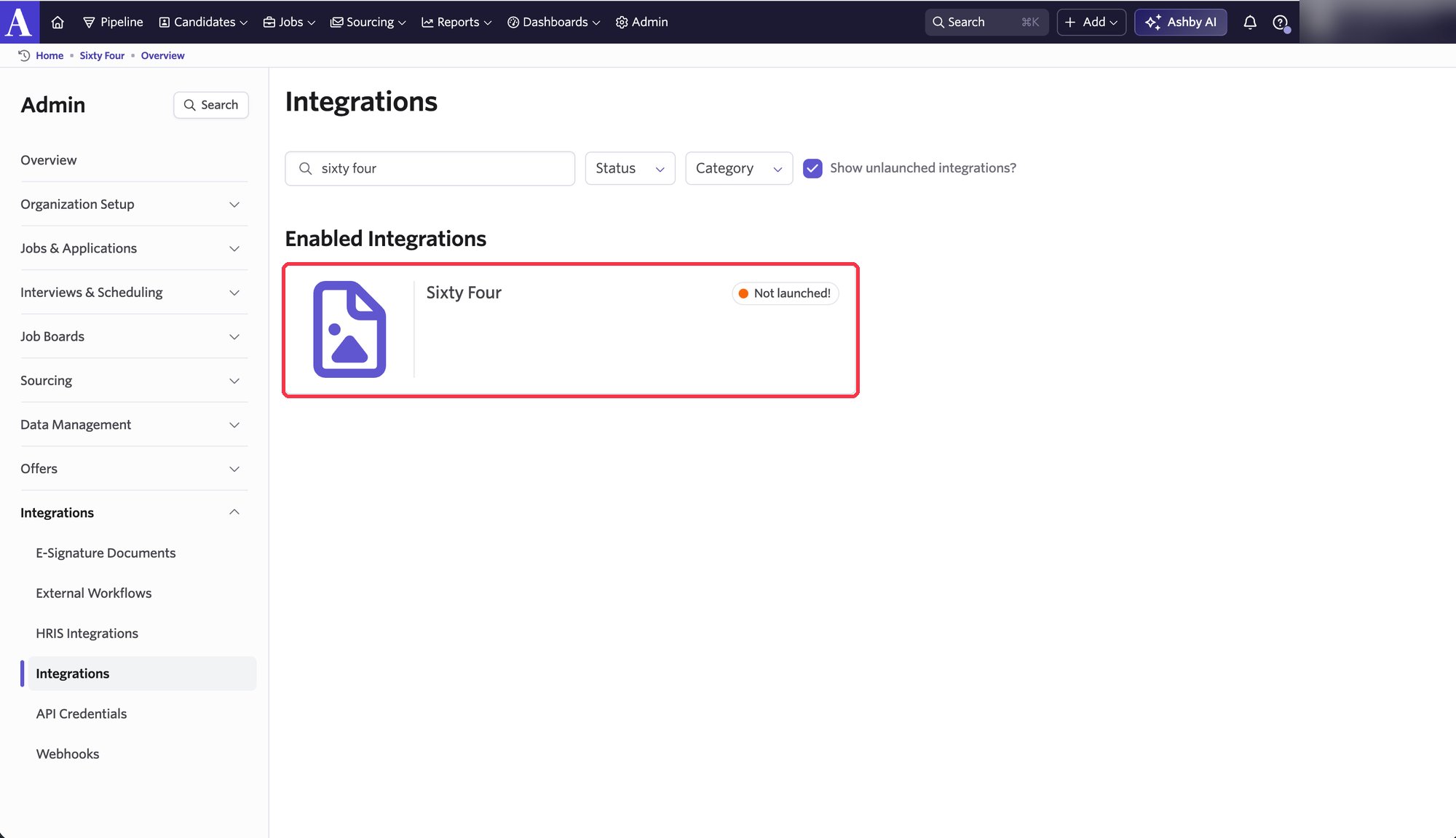
 Search for **Sixty Four** and select the tile.
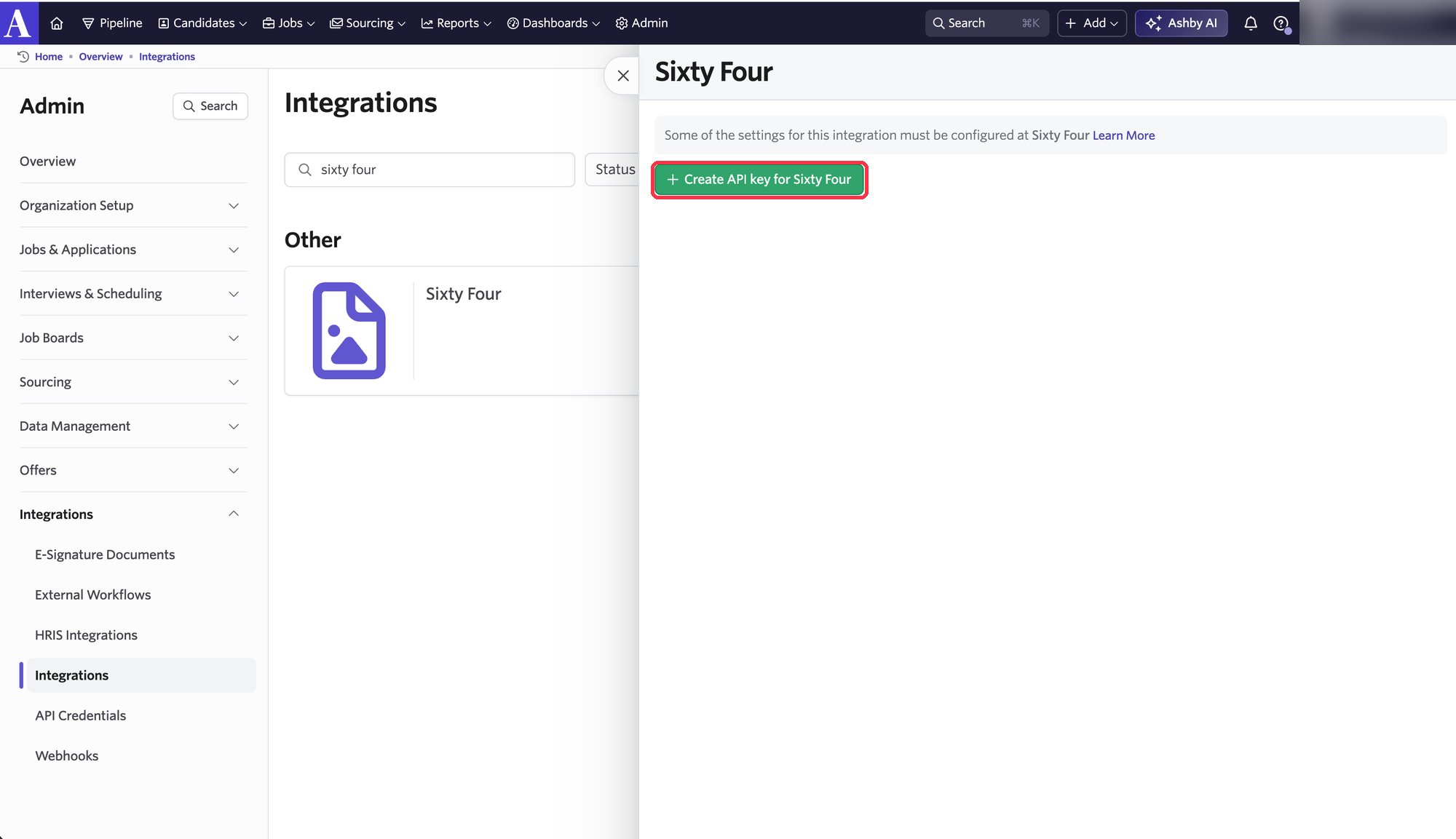
 Click **Create API key for Sixty Four** and copy the key Ashby shows. You paste it into Sixtyfour in the next section.
 ## Connect the key in Sixtyfour
In the [Sixtyfour dashboard](https://app.sixtyfour.ai), go to **Settings → Integrations** and select **Ashby**.
## Connect the key in Sixtyfour
In the [Sixtyfour dashboard](https://app.sixtyfour.ai), go to **Settings → Integrations** and select **Ashby**.
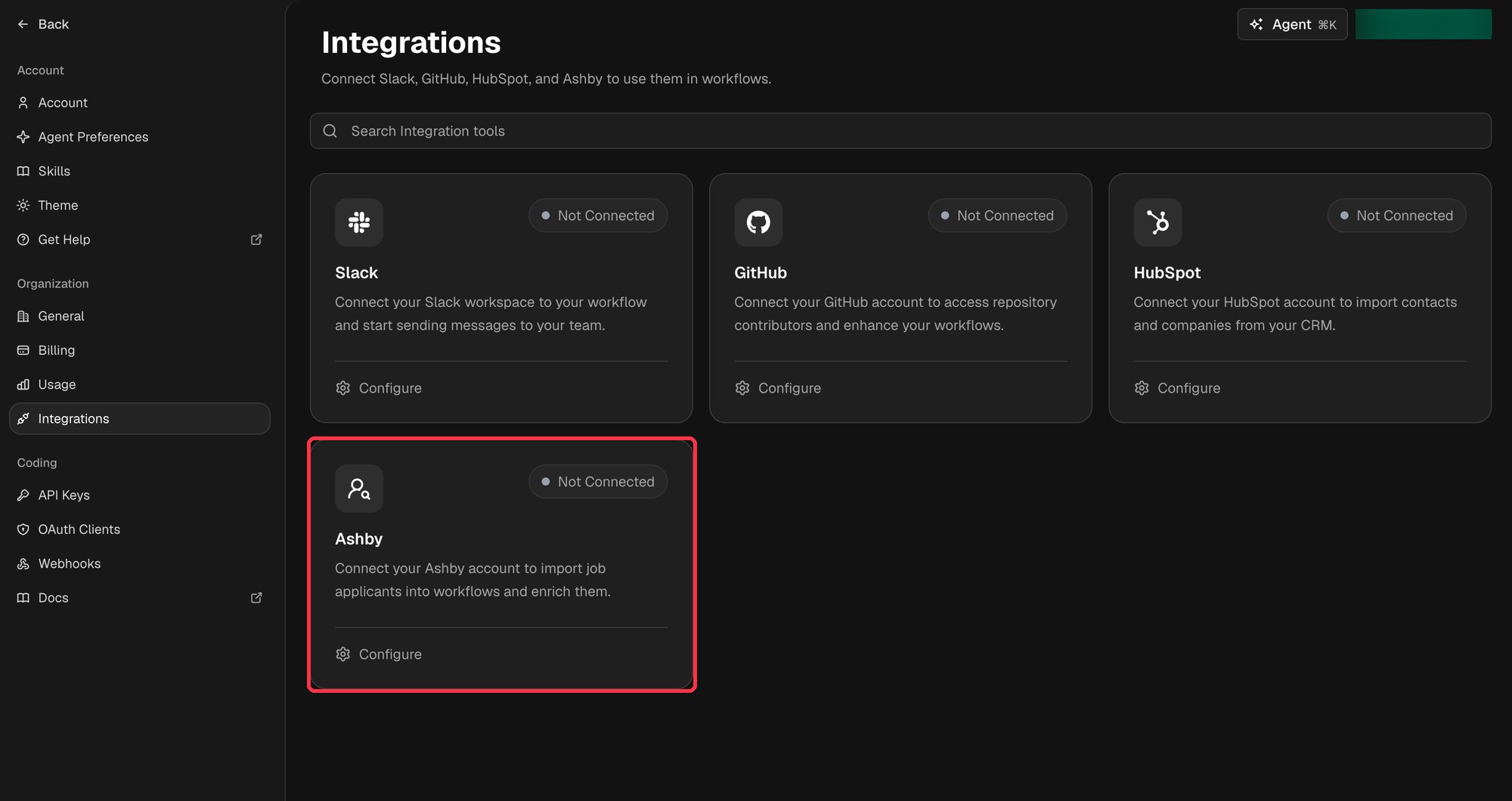 Paste the key into **API key** and click **Connect**. Sixtyfour checks that the key can read jobs and candidates before saving it.
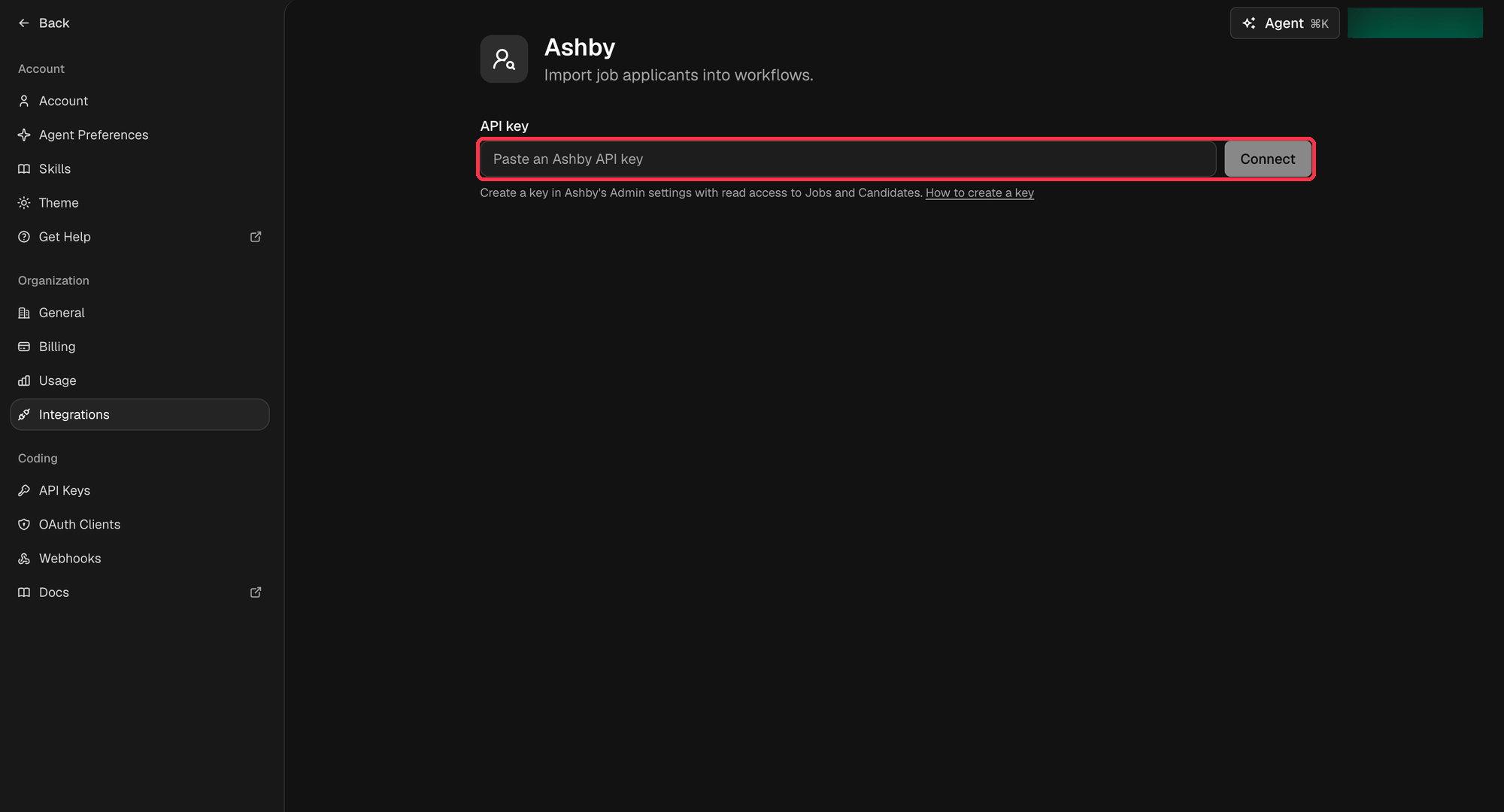 The connection belongs to your current team. Every workflow in the team that imports from Ashby uses it. Sixtyfour encrypts the key with your organization's own encryption key.
## Import applicants into a workflow
Open the [Workflow Editor](https://app.sixtyfour.ai/workflows), add an **Import Data** block, and set **Import from** to **Ashby · Job applicants**.
The connection belongs to your current team. Every workflow in the team that imports from Ashby uses it. Sixtyfour encrypts the key with your organization's own encryption key.
## Import applicants into a workflow
Open the [Workflow Editor](https://app.sixtyfour.ai/workflows), add an **Import Data** block, and set **Import from** to **Ashby · Job applicants**.
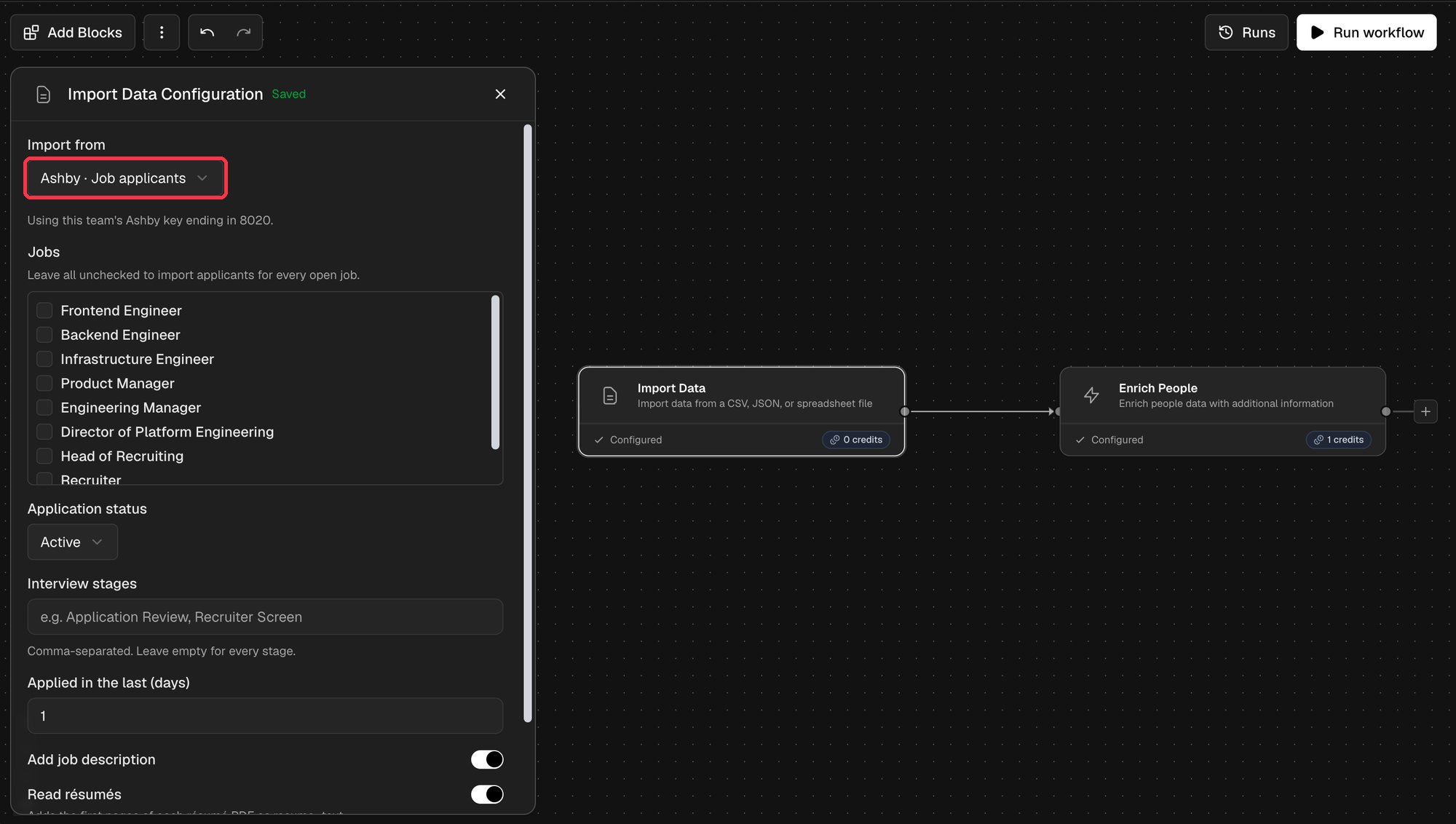 | Setting | What it does |
| - | - |
| Jobs | The open jobs to import applicants from. Leave all unchecked to import from every open job. |
| Application status | Active, Lead, Hired, or Archived. Defaults to Active. |
| Interview stages | Comma-separated stage names, such as `Application Review, Recruiter Screen`. Leave empty for every stage. |
| Applied in the last (days) | Only applicants who applied in this many days. Leave empty for any time. |
| Add job description | Adds the job posting's description as `job_description`. |
| Read résumés | Adds the text of each résumé PDF as `resume_text`. |
| Maximum rows | Caps how many applicants the run imports. |
Each applicant becomes one row, so any people block can follow. A common pattern enriches applicants and sends the results to your own system:
```mermaid theme={null}
flowchart LR
Ashby[Import Data: Ashby] --> Enrich_People[Enrich People] --> Webhook[Outgoing Webhooks]
```
Run the workflow from the editor, or put it on a [schedule](/guides/automated-workflows) to pick up new applicants as they apply.
### Imported columns
| Column | Description |
| - | - |
| `name`, `email`, `phone` | From the candidate's Ashby profile |
| `linkedin`, `github`, `website` | The candidate's social links in Ashby |
| `title`, `company`, `school`, `location` | The candidate's current role and background in Ashby |
| `job_title` | The job the candidate applied to |
| `application_status`, `interview_stage` | Where the application stands |
| `applied_at`, `source` | When and how the candidate applied |
| `ashby_application_id`, `ashby_candidate_id`, `ashby_job_id` | Ashby IDs, for matching results back to Ashby |
| `ashby_profile_url` | Link to the candidate in Ashby |
| `job_description` | Present when **Add job description** is on |
| `resume_text` | Present when **Read résumés** is on |
## Disconnect Ashby
* In Sixtyfour, go to **Settings → Integrations → Ashby** and click the disconnect icon next to the key.
* In Ashby, deactivate the key under **Admin → API Credentials**.
Workflows that import from Ashby stop until the team connects a key again.
## Troubleshooting
| Message | Fix |
| - | - |
| Ashby rejected this team's connection | The key was deactivated in Ashby. Create a new key from the Sixty Four tile and use **Replace key** in Sixtyfour. |
| The Ashby key can't read Jobs and Candidates | The key is missing a permission. Create the key from the Sixty Four tile, which grants the permissions Sixtyfour needs. |
| The run imports no applicants | Check **Application status** and **Applied in the last (days)**. Only open jobs appear in the job list. |
## Block reference
| Field | Value |
| - | - |
| Block type | `read_csv` with `specs.source.type` set to `ashby_applicants` |
| Pipeline position | Source (first block) |
| Requires integration | Yes, the team must have Ashby connected |
| Output data type | Lead |
This documentation is built and hosted on [Mintlify](https://mintlify.com), a developer documentation platform.
| Setting | What it does |
| - | - |
| Jobs | The open jobs to import applicants from. Leave all unchecked to import from every open job. |
| Application status | Active, Lead, Hired, or Archived. Defaults to Active. |
| Interview stages | Comma-separated stage names, such as `Application Review, Recruiter Screen`. Leave empty for every stage. |
| Applied in the last (days) | Only applicants who applied in this many days. Leave empty for any time. |
| Add job description | Adds the job posting's description as `job_description`. |
| Read résumés | Adds the text of each résumé PDF as `resume_text`. |
| Maximum rows | Caps how many applicants the run imports. |
Each applicant becomes one row, so any people block can follow. A common pattern enriches applicants and sends the results to your own system:
```mermaid theme={null}
flowchart LR
Ashby[Import Data: Ashby] --> Enrich_People[Enrich People] --> Webhook[Outgoing Webhooks]
```
Run the workflow from the editor, or put it on a [schedule](/guides/automated-workflows) to pick up new applicants as they apply.
### Imported columns
| Column | Description |
| - | - |
| `name`, `email`, `phone` | From the candidate's Ashby profile |
| `linkedin`, `github`, `website` | The candidate's social links in Ashby |
| `title`, `company`, `school`, `location` | The candidate's current role and background in Ashby |
| `job_title` | The job the candidate applied to |
| `application_status`, `interview_stage` | Where the application stands |
| `applied_at`, `source` | When and how the candidate applied |
| `ashby_application_id`, `ashby_candidate_id`, `ashby_job_id` | Ashby IDs, for matching results back to Ashby |
| `ashby_profile_url` | Link to the candidate in Ashby |
| `job_description` | Present when **Add job description** is on |
| `resume_text` | Present when **Read résumés** is on |
## Disconnect Ashby
* In Sixtyfour, go to **Settings → Integrations → Ashby** and click the disconnect icon next to the key.
* In Ashby, deactivate the key under **Admin → API Credentials**.
Workflows that import from Ashby stop until the team connects a key again.
## Troubleshooting
| Message | Fix |
| - | - |
| Ashby rejected this team's connection | The key was deactivated in Ashby. Create a new key from the Sixty Four tile and use **Replace key** in Sixtyfour. |
| The Ashby key can't read Jobs and Candidates | The key is missing a permission. Create the key from the Sixty Four tile, which grants the permissions Sixtyfour needs. |
| The run imports no applicants | Check **Application status** and **Applied in the last (days)**. Only open jobs appear in the job list. |
## Block reference
| Field | Value |
| - | - |
| Block type | `read_csv` with `specs.source.type` set to `ashby_applicants` |
| Pipeline position | Source (first block) |
| Requires integration | Yes, the team must have Ashby connected |
| Output data type | Lead |
This documentation is built and hosted on [Mintlify](https://mintlify.com), a developer documentation platform.