

The Ashby integration is in early access. Contact support@sixtyfour.ai to turn it on for your organization.
What Sixtyfour reads
The API key created from the Sixty Four tile in Ashby has read access to two Ashby modules.
Sixtyfour reads Ashby only when you connect a key, pick jobs in the Import Data block, or run a workflow.
Create an API key in Ashby
You need Admin access in Ashby to create the key.1
Open Admin
Sign in to Ashby and click Admin in the top navigation bar.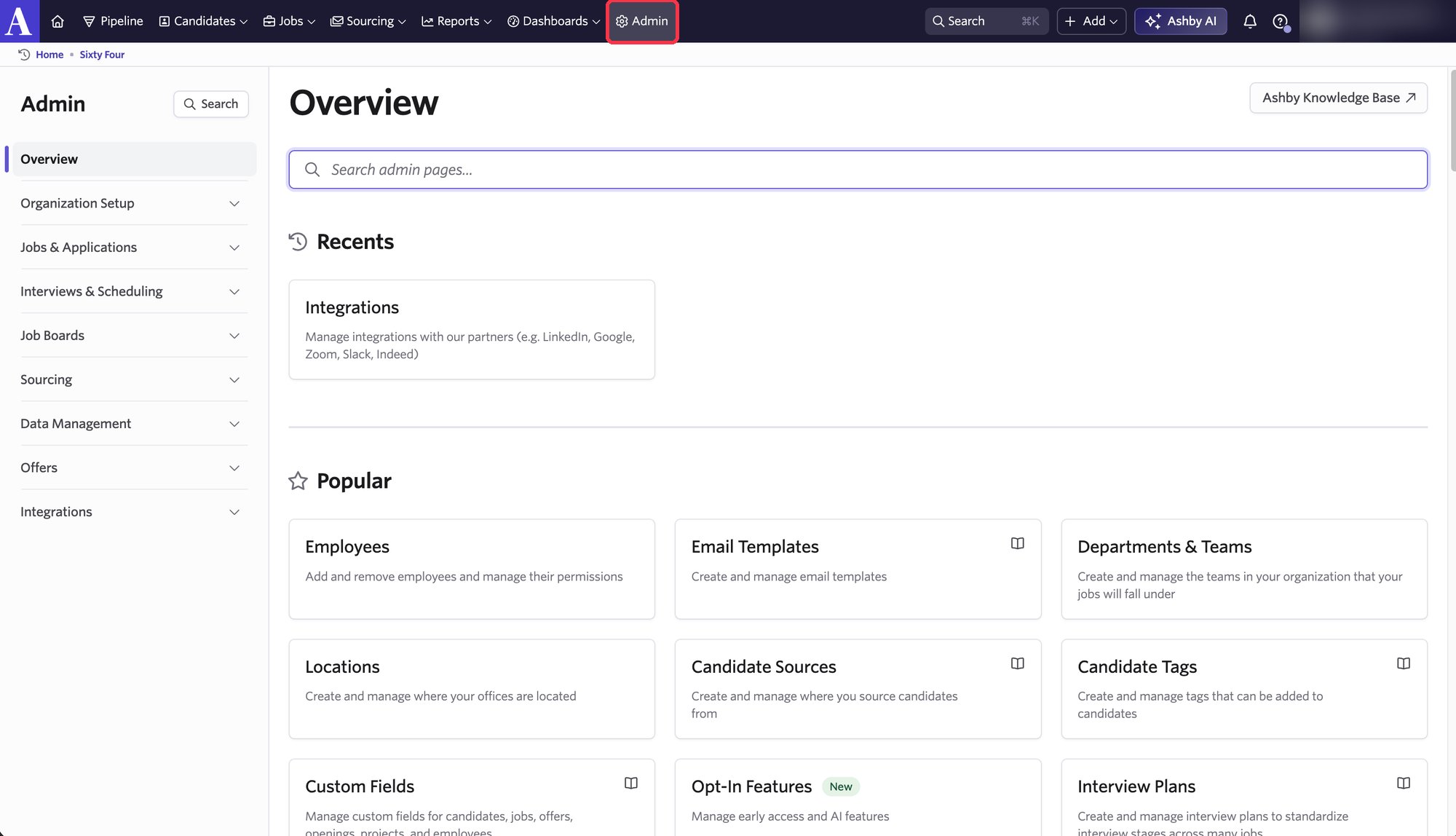
2
Open Integrations
In the left panel, open Integrations and click Integrations.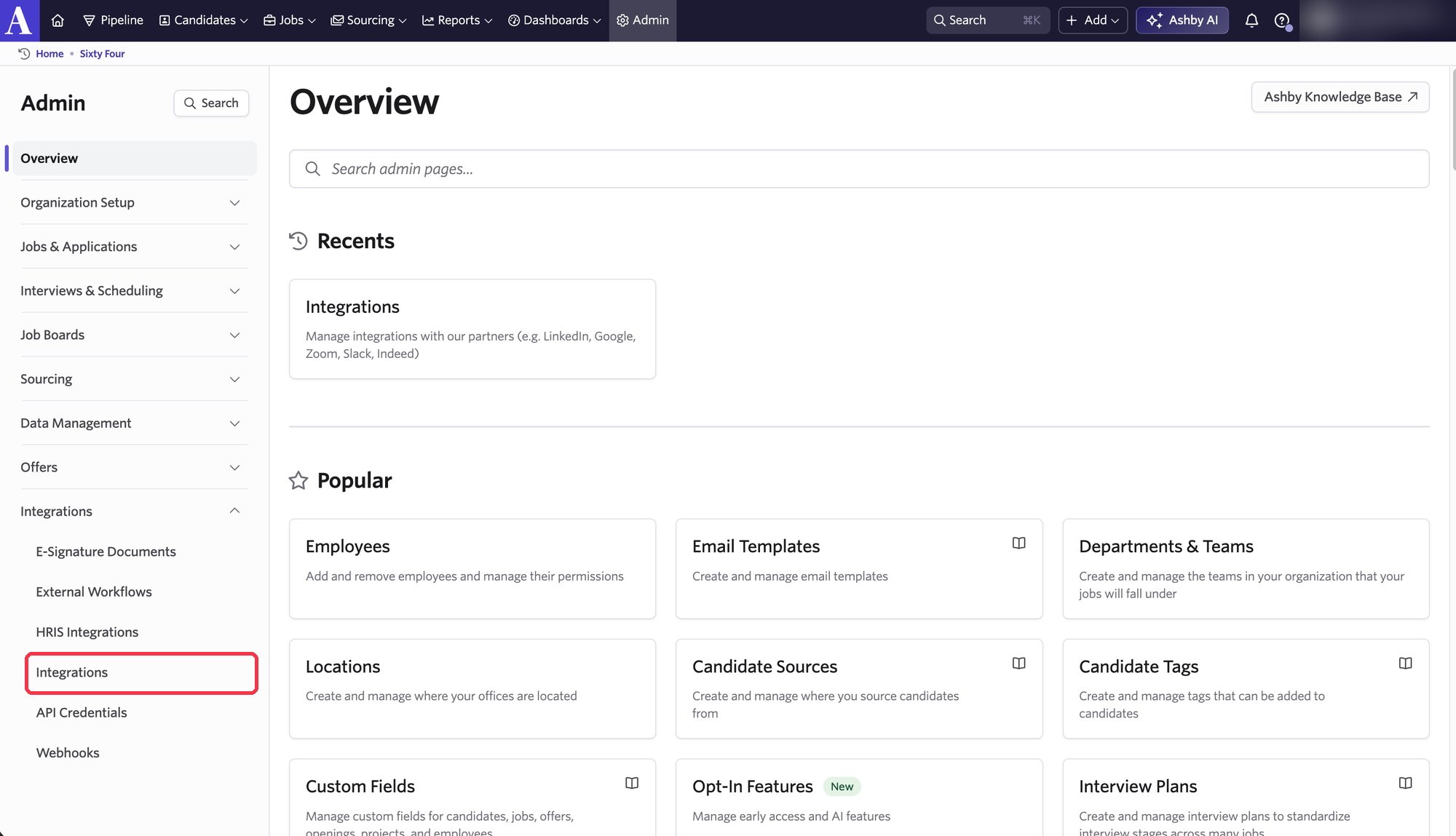
3
Open the Sixty Four tile
Search for Sixty Four and select the tile.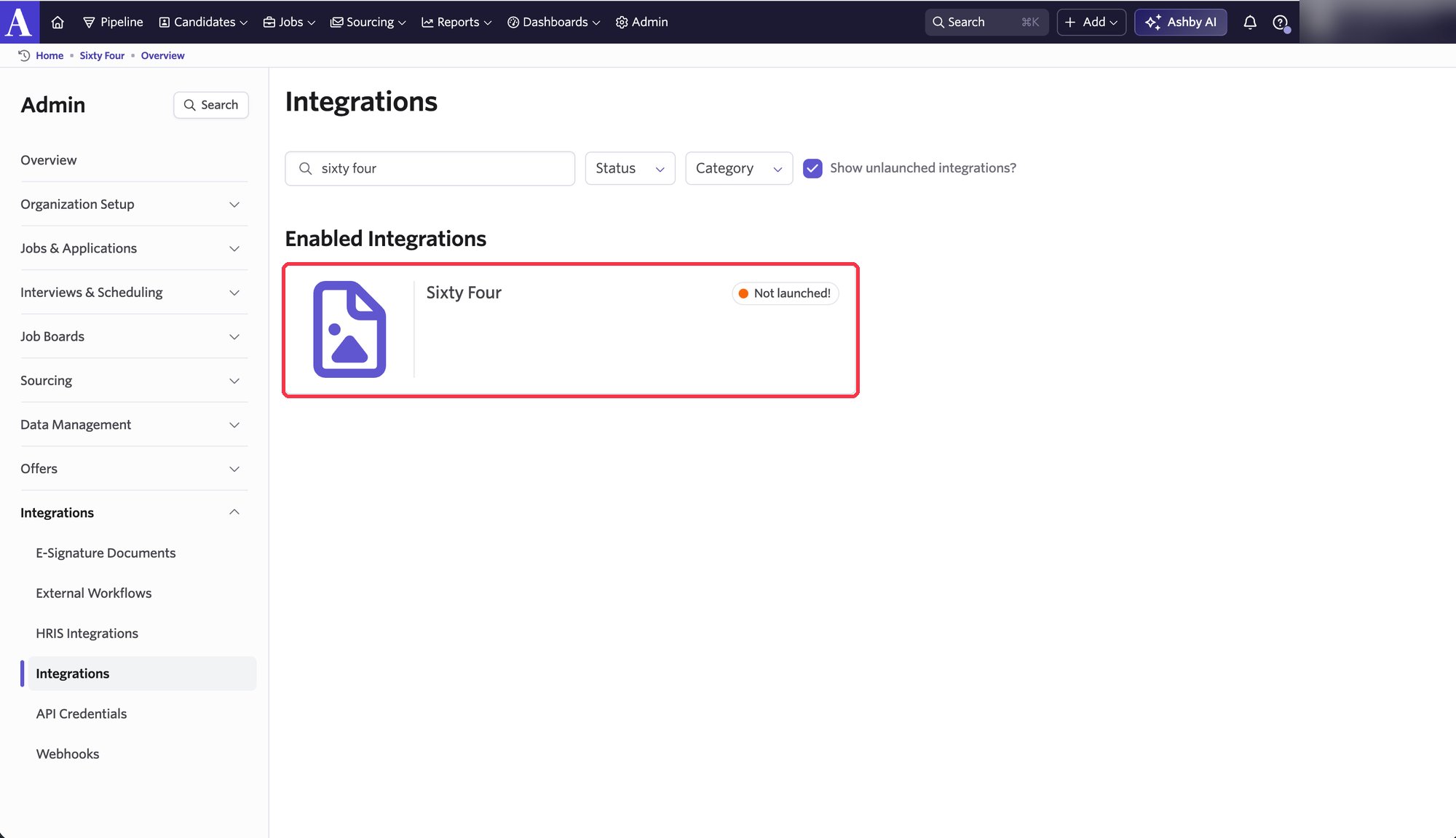
4
Create and copy the key
Click Create API key for Sixty Four and copy the key Ashby shows. You paste it into Sixtyfour in the next section.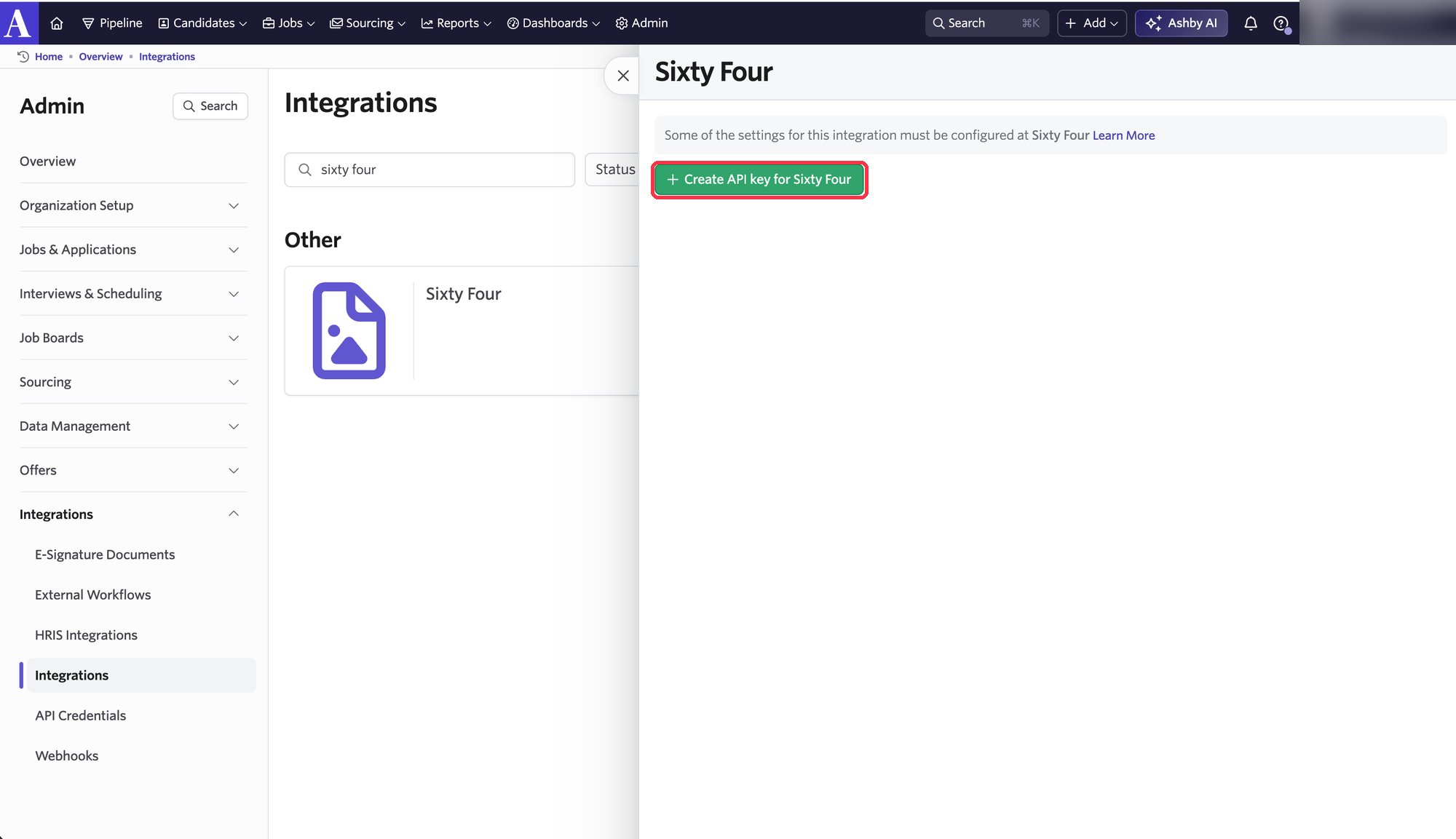
Connect the key in Sixtyfour
1
Open the Ashby integration
In the Sixtyfour dashboard, go to Settings → Integrations and select Ashby.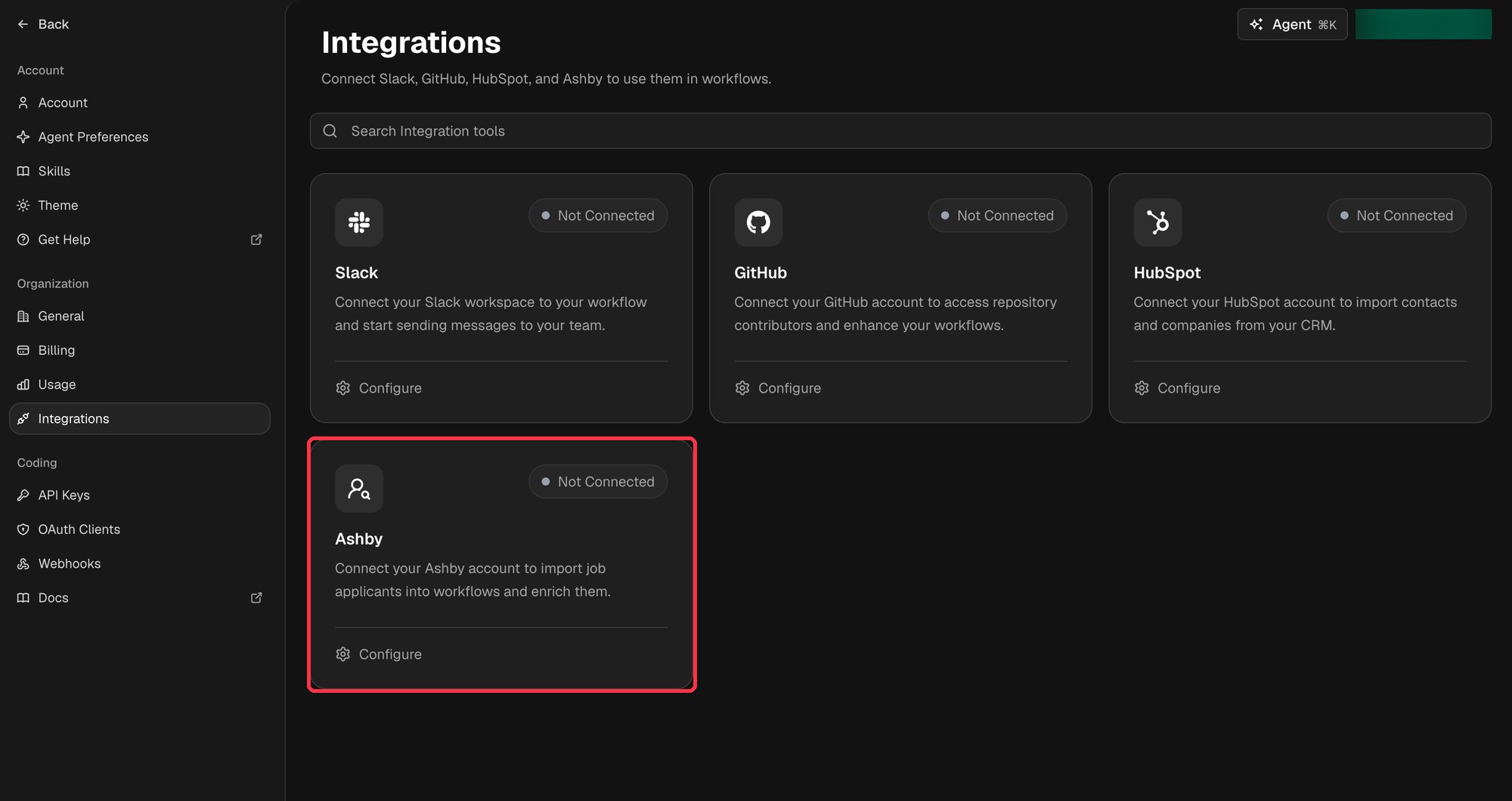
2
Paste the key and connect
Paste the key into API key and click Connect. Sixtyfour checks that the key can read jobs and candidates before saving it.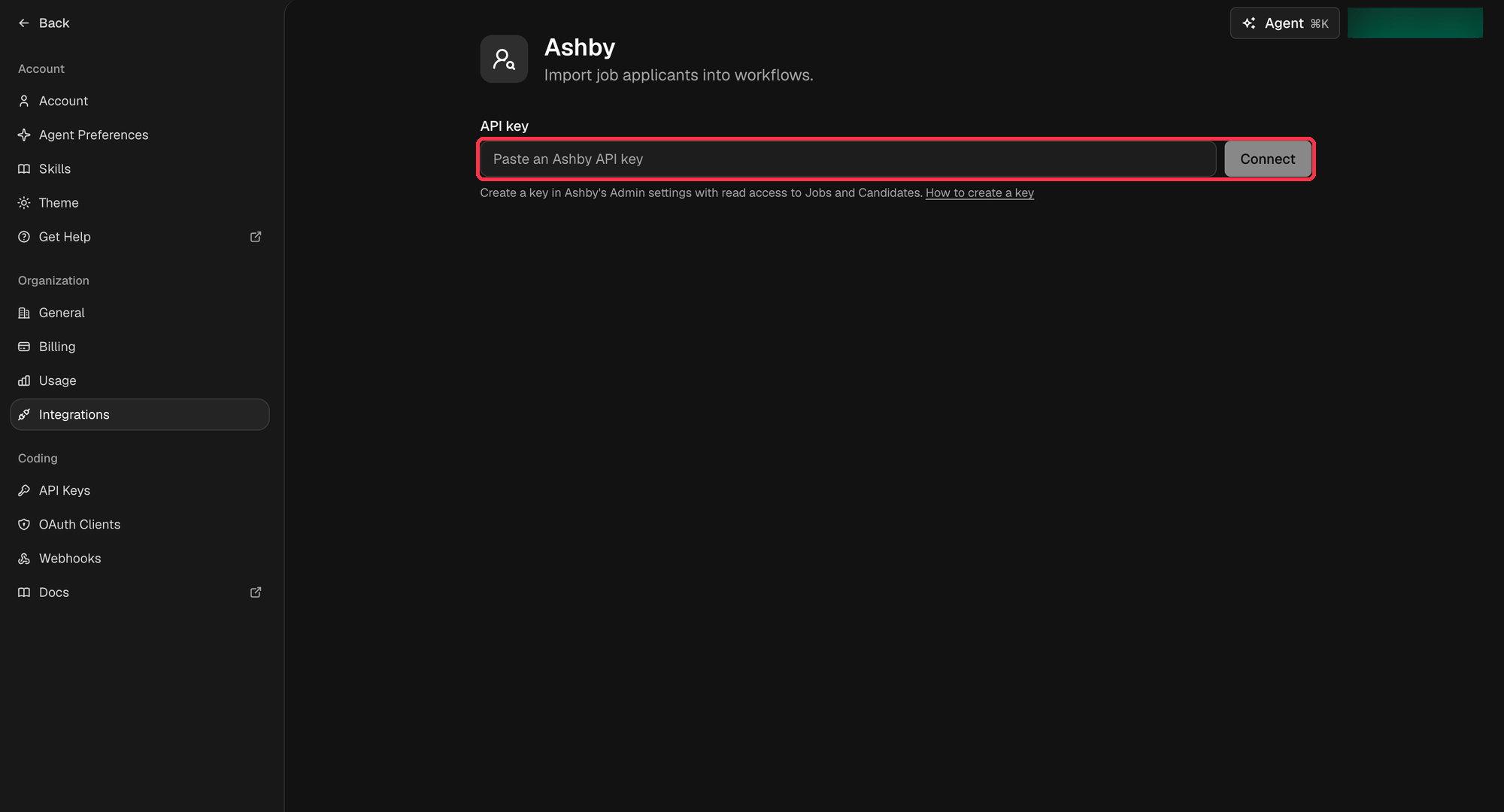
Import applicants into a workflow
1
Add an Import Data block
Open the Workflow Editor, add an Import Data block, and set Import from to Ashby · Job applicants.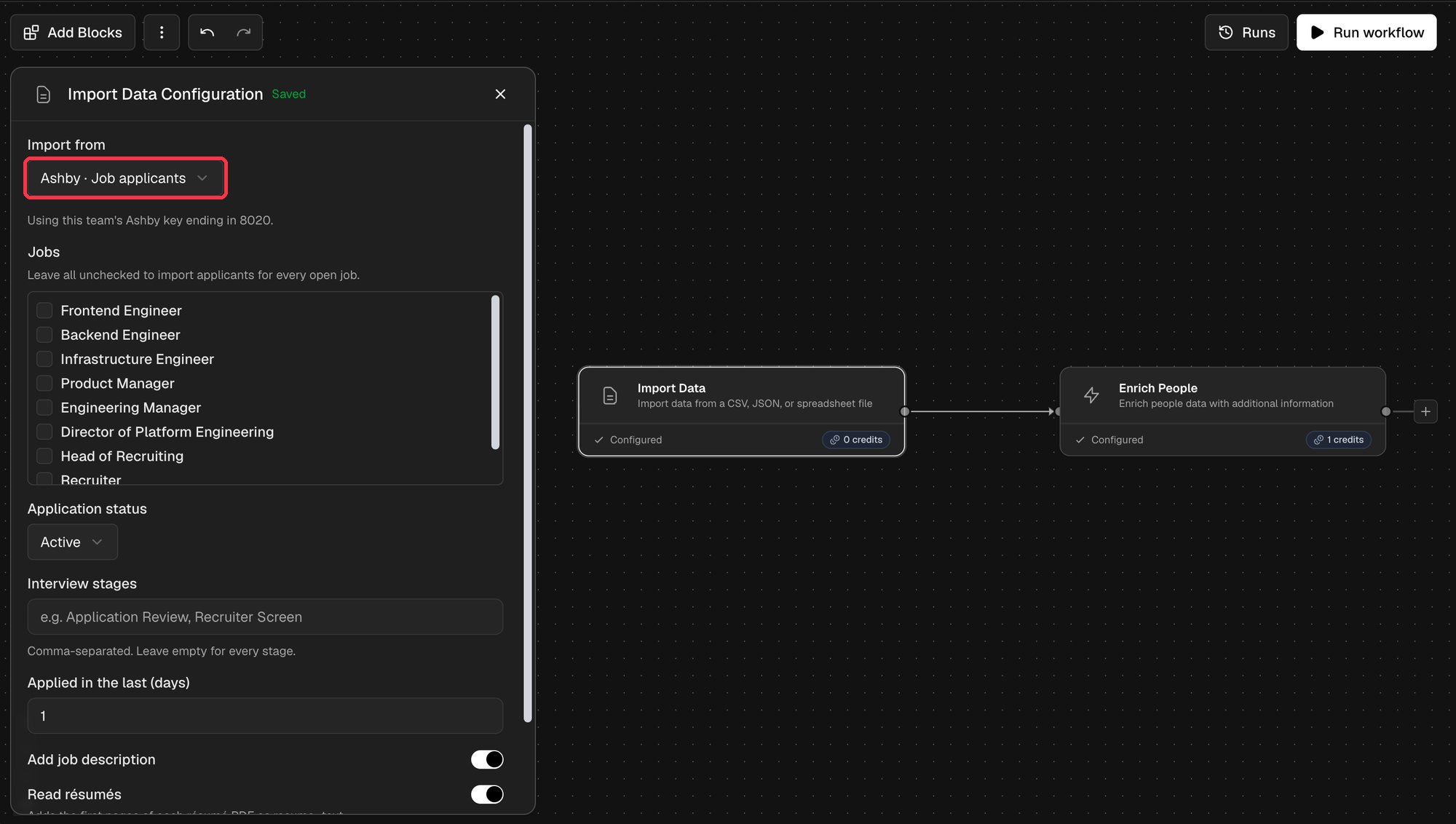
2
Choose which applicants to import
3
Add enrichment and output blocks
Each applicant becomes one row, so any people block can follow. A common pattern enriches applicants and sends the results to your own system:
4
Run the workflow
Run the workflow from the editor, or put it on a schedule to pick up new applicants as they apply.
Imported columns
Disconnect Ashby
- In Sixtyfour, go to Settings → Integrations → Ashby and click the disconnect icon next to the key.
- In Ashby, deactivate the key under Admin → API Credentials.