

Why automate workflows
Schedules pair naturally with the Deduplicate with Notebook block, which prevents recurring runs from saving the same row twice. See Building Workflows for the full block reference.
Prerequisites
- A completed workflow. Schedules attach to a
workflow_id, so a draft workflow with no ID cannot be scheduled.
Open the schedules panel
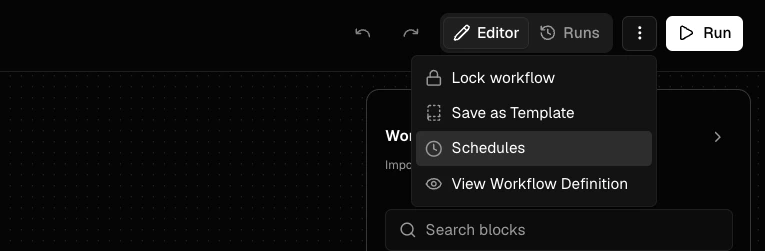
From the Workflow Editor, click the overflow menu (···) next to the Run button and select Schedules.
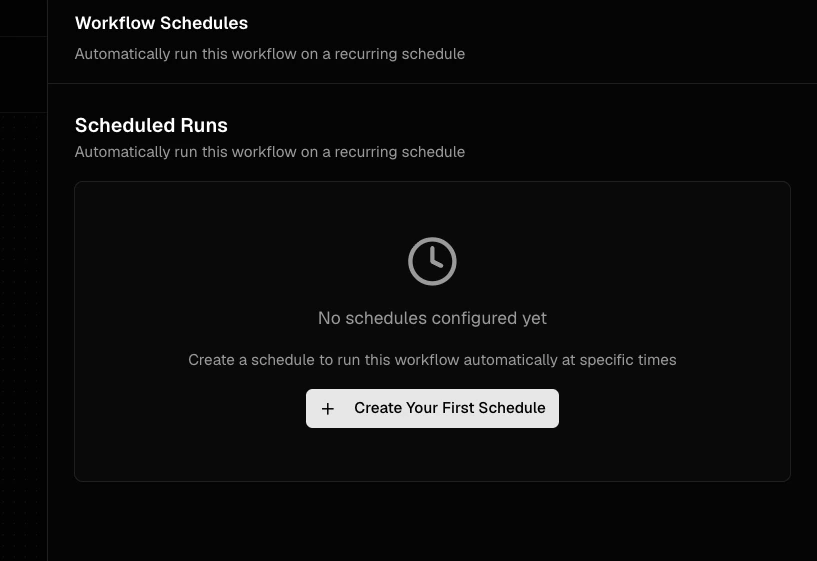
Create a schedule
The Create Schedule dialog has two ways to define when the workflow runs: common presets or a custom cron expression.Use a common preset
The Common Schedules tab covers the most frequent cadences. Pick one from the dropdown and the dialog shows a preview of the next three run times in your selected timezone.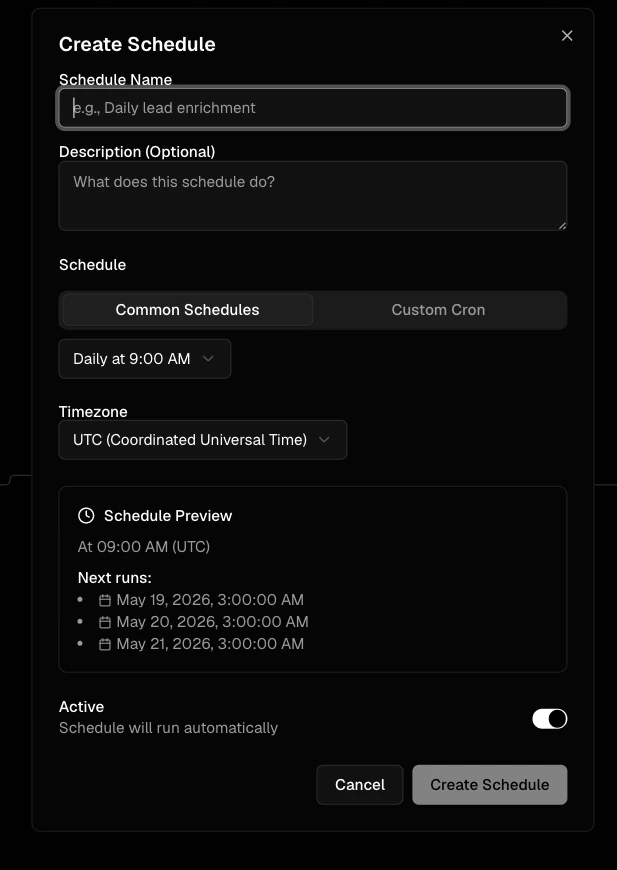
- Every 15 minutes
- Every 30 minutes
- Every hour
- Daily at 9:00 AM
- Every weekday at 9:00 AM
- Every Monday at 9:00 AM
- Weekly (Monday 9:00 AM)
- Monthly (1st at 9:00 AM)
Use a custom cron expression
Switch to the Custom Cron tab for anything outside the presets. Sixtyfour uses standard 5-field cron syntax:minute hour day month weekday.
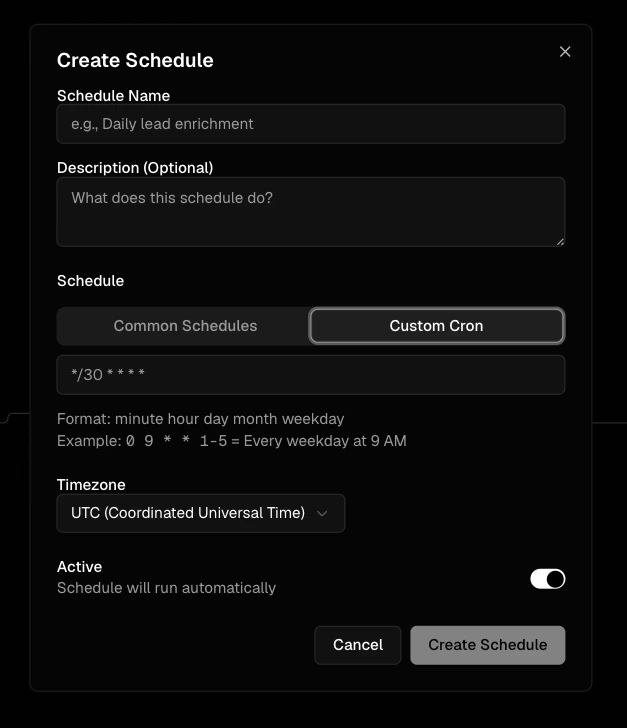
Common patterns:
*/30 * * * *— every 30 minutes0 9 * * 1-5— every weekday at 9:00 AM0 */4 * * *— every 4 hours on the hour0 2 1 * *— 2:00 AM on the 1st of every month
Required fields
Click Create Schedule to save. The schedule appears in the schedules list with its next run time.
Manage existing schedules
Each schedule in the list shows its name, status badge (Active or Paused), human-readable cadence, next run time, and last run status. Per-schedule controls:
- Active toggle — pause or resume the schedule without deleting it.
- Edit — change the name, cadence, timezone, or active state.
- Delete — permanently remove the schedule. The workflow itself is not affected.
Workflows that begin with an Incoming Webhooks block expect external payloads and aren’t a fit for time-based schedules. For those, trigger runs via the Workflows API instead.
Billing
Scheduled runs are billed against your organization the same way manual runs are. See Credits & Pricing for cost details.Tips
- Stagger heavy workflows that share an hourly cadence. Schedules that all fire at
:00create a load spike — offset them (5 * * * *,15 * * * *) to smooth credit usage. - Add a Deduplicate with Notebook block to any recurring workflow that writes to a notebook. It prevents the same row from being re-saved on every run.
- Set the timezone to your team’s timezone. A schedule named “Daily at 9 AM” only matches your team’s morning if the timezone is set correctly. UTC is the default.
- Pause schedules instead of deleting them while iterating on a workflow — you keep the history and configuration.