Set up an OAuth client to authenticate server-to-server requests with a short-lived, signed JWT assertion instead of a long-lived API key. Sixtyfour verifies your JWT against a public key you register directly or via a JWKS URL — there is no client secret.
PropertyValue
Grant typeclient_credentials
Client authprivate_key_jwt
Signing algorithmRS256
Scopefull_access
Token URLhttps://api.sixtyfour.ai/oauth/token
Discovery URLhttps://api.sixtyfour.ai/.well-known/oauth-authorization-server

Step 1: Go to OAuth Clients

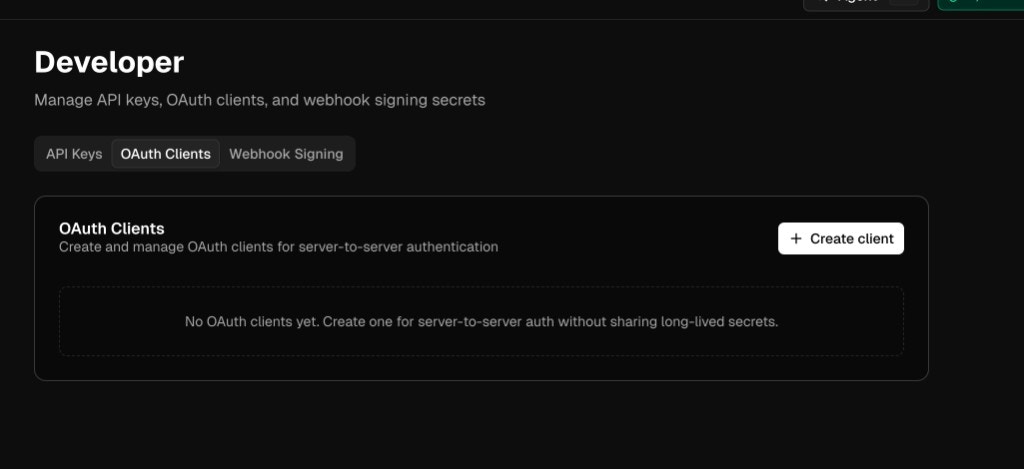
Go to Your Profile > Developers > OAuth Clients. OAuth Clients tab in the Developer settings

Step 2: Create a client

  1. Click Create client
  2. Enter a Client Name (for example, my-production-app)
  3. Optionally enter a JWKS URL — a public HTTPS endpoint that serves your JSON Web Key Set
The JWKS choice is permanent. Provide a JWKS URL for automatic key discovery and rotation, or leave it blank to upload public keys manually. You cannot switch modes after creation.
  1. Click Create and continue
Sixtyfour generates a client_id and drops you into the client detail view.

Step 3: Configure your key

Pick the flow that matches how you created the client.

Option A — JWKS URL

If you configured a JWKS URL, Sixtyfour fetches your public keys from that endpoint automatically. Validate it at any time:
  1. On the client detail page, click Validate JWKS
  2. Confirm the health indicator shows a green check and a recent validation timestamp

Option B — Upload a public key

If you did not set a JWKS URL, generate an RSA key pair and upload the public half:
openssl genrsa -out private.pem 2048
openssl rsa -in private.pem -pubout -out public.pem
  1. Click Upload key
  2. Paste the contents of public.pem (including the -----BEGIN PUBLIC KEY----- and -----END PUBLIC KEY----- lines)
  3. Click Upload key
Copy the generated Key ID (kid) — you’ll include it in the JWT header.
Keep private.pem on the server that signs assertions. Never commit it or send it to a browser.

Step 4: Request an access token

Your server signs a short-lived JWT assertion with the private key, then POSTs it to the token endpoint.
import jwt, time, uuid, requests

# pip install PyJWT cryptography requests

CLIENT_ID = "YOUR_CLIENT_ID"
KEY_ID = "YOUR_KEY_ID"
TOKEN_URL = "https://api.sixtyfour.ai/oauth/token"
ISSUER = TOKEN_URL.replace("/oauth/token", "")  # or fetch from discovery

# Load your private key (keep this secret, never commit it)
with open("private.pem") as f:
    private_key = f.read()

# Build the signed JWT assertion
now = int(time.time())
assertion = jwt.encode(
    {
        "iss": CLIENT_ID,
        "sub": CLIENT_ID,
        "aud": ISSUER,
        "iat": now,
        "exp": now + 60,
        "jti": str(uuid.uuid4()),
    },
    private_key,
    algorithm="RS256",
    headers={"kid": KEY_ID},
)

# Exchange for an access token
resp = requests.post(TOKEN_URL, data={
    "grant_type": "client_credentials",
    "client_id": CLIENT_ID,
    "client_assertion_type": "urn:ietf:params:oauth:client-assertion-type:jwt-bearer",
    "client_assertion": assertion,
    "scope": "full_access",
})
access_token = resp.json()["access_token"]
print("Access token:", access_token)
The response contains a bearer token:
{
  "access_token": "eyJhbGciOi...",
  "token_type": "Bearer",
  "expires_in": 3600,
  "scope": "full_access"
}

Step 5: Call the API

Send the token in the Authorization header on any Sixtyfour API request:
Authorization: Bearer YOUR_ACCESS_TOKEN
Content-Type: application/json
OAuth access tokens work on all endpoints that accept x-api-key. Do not send both headers on the same request. Run the token exchange server-side only — never from a browser.

Managing a client

The client detail page exposes everything you need after setup.

Adjust token TTL

Change Token TTL to control how long issued access tokens stay valid. Options are 1 minute, 5 minutes, 1 hour, or 24 hours. Shorter TTLs reduce blast radius if a token is leaked.

Rotate keys

If you configured a JWKS URL, publish the new key in your JWKS document and click Validate JWKS. Sixtyfour picks up the new kid automatically on the next fetch. If you uploaded a public key directly, upload the new key, switch your signer to the new kid, then revoke the old key from the Public Keys table.

Permanently disable a client

Clicking Disable is irreversible: it immediately invalidates all outstanding tokens and the client cannot be re-enabled. If you only need a temporary pause, rotate keys instead. To restore access after disabling, create a new client.

Delete a client

Use the trash icon on the detail page header. Deleting revokes all tokens and keys for that client and cannot be undone.