Documentation Index

Fetch the complete documentation index at: https://docs.sixtyfour.ai/llms.txt

Use this file to discover all available pages before exploring further.

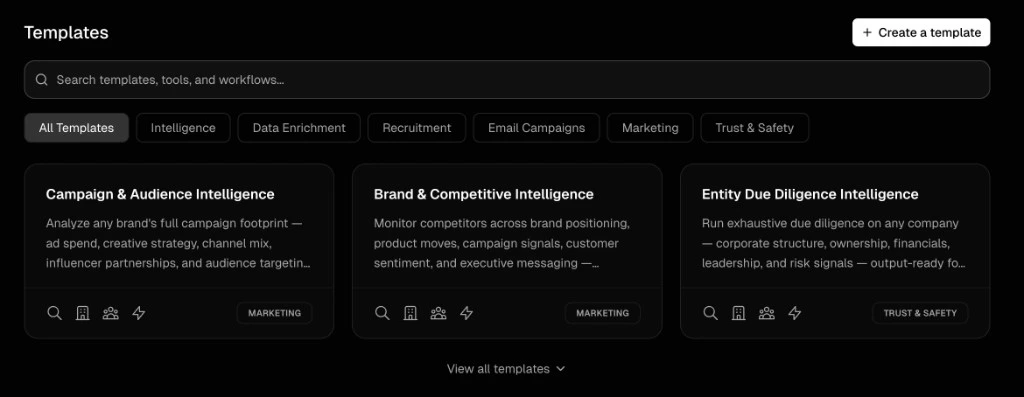
Workflow templates are pre-built workflows for common Sixtyfour use cases — lead enrichment, due diligence, recruiting research, email campaigns, and more. Use a template to skip the blank canvas and ship a working workflow in minutes. Save your own templates to share with teammates in your organization. Click Workflow in the sidebar of the Sixtyfour dashboard to open the Templates gallery. Workflow templates gallery showing categories, search, and template cards The Templates page lists every template available to you, grouped by section. Filter the gallery using the search bar and category chips at the top of the page.
  • All Templates — every template in your org, plus all global templates
  • Intelligence — research workflows for people and companies
  • Data Enrichment — append missing fields to existing lists
  • Recruitment — sourcing and candidate research
  • Email Campaigns — find verified emails and route them to outbound
  • Marketing — campaign analysis, audience research, competitor monitoring
  • Trust & Safety — entity diligence, KYC/KYB, deanonymization
Additional categories — including Deanonymization, Finance, Background Checks, OSINT, and AML/KYC — appear in the Category dropdown next to the chip filters when relevant templates are available to your organization.
Templates marked Locked require an Enterprise plan with OSINT-grade intelligence enabled — click one to see upgrade options.

Use a template

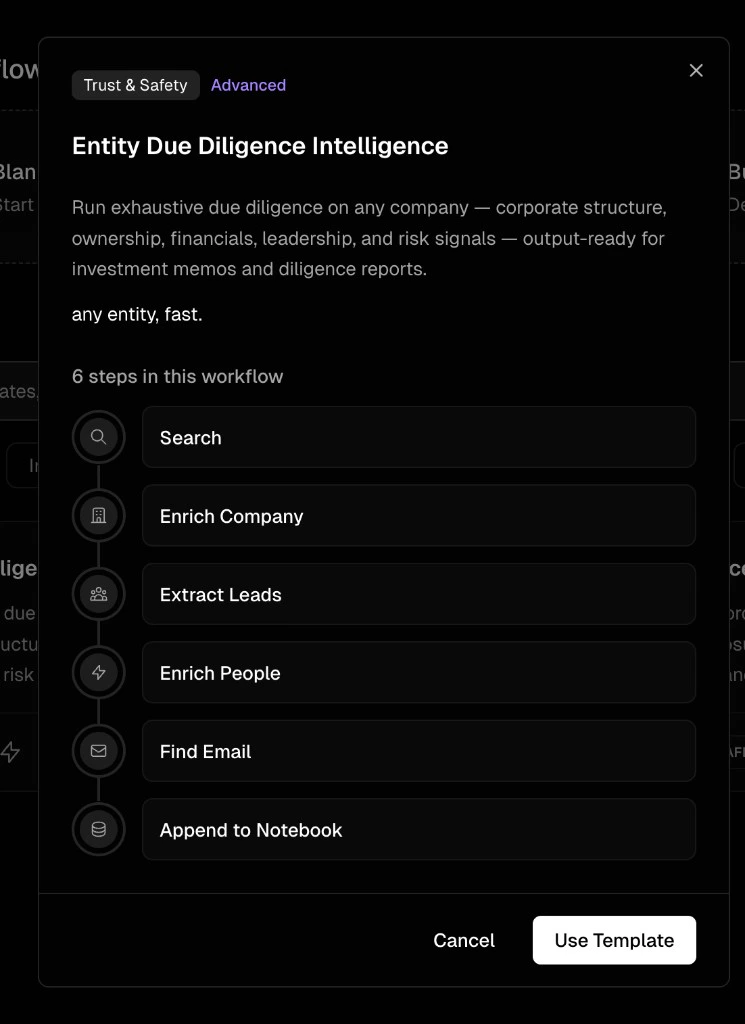
Click any template card to open its preview. The preview shows the template’s category, complexity, use case, and every step in the workflow. Template preview modal showing the steps in an Entity Due Diligence workflow
  1. Click a template card to open the preview modal.
  2. Review the steps and confirm the template fits your use case.
  3. Click Use Template.
Sixtyfour creates a new workflow in the Workflow Editor, pre-filled with the template’s defined blocks. From there you can run it as-is or customize any block — change inputs, adjust return fields, add filters, swap output destinations — before you run it. Edits to your copy do not affect the original template or anyone else using it. For details on what each block does, see Building Workflows.

Create a template

You can convert any of your existing workflows into a reusable template. There are three entry points.

From the Templates page

  1. Open the Templates page.
  2. Click Create in the top-right corner.
  3. Select the workflow you want to convert from the list.
  4. Fill in the template details (see Template fields below).
  5. Click Create Template.

From the Workflow Editor

  1. Open any workflow with at least one block.
  2. Click the menu in the workflow header and select Save as Template.
  3. Fill in the template details and click Create Template.

From Workflow History

  1. Open your Workflow History.
  2. Find the workflow you want to convert and click the kebab menu (⋮) in its row.
  3. Select Save as Template.
  4. Fill in the template details and click Create Template.

Template fields

FieldRequiredDescription
NameYesShort, descriptive name (e.g., “LinkedIn Lead Enrichment”).
DescriptionYesOne- or two-sentence overview of what the template does.
Use CaseYesWhen someone should pick this template. Surfaces in the preview modal.
CategoryYesOne of the template categories.
ComplexityYesQuick, Standard, or Advanced. Sets reader expectations.
Estimated TimeYesHow long a typical run takes (e.g., “10 minutes”).
TagsNoSearchable keywords like linkedin, enrichment, kyc.
Feature this templateNoPins this template to the top of its section.
The template captures your workflow’s blocks and connections, not its data. Any sample inputs or results from past runs are not included.

Tips

  • Start from a template, then customize the blocks to match your exact return fields, filters, and output destination.
  • Convert your team’s best-performing workflows into org templates so new teammates start from a known-good baseline.
  • Write the Use Case field like advice to a new hire, not a marketing tagline — it’s what teammates see in the preview modal.
  • Tag for findability. Tags power the search bar, so add the platforms, data types, and industries the template applies to.