Usage Dashboard
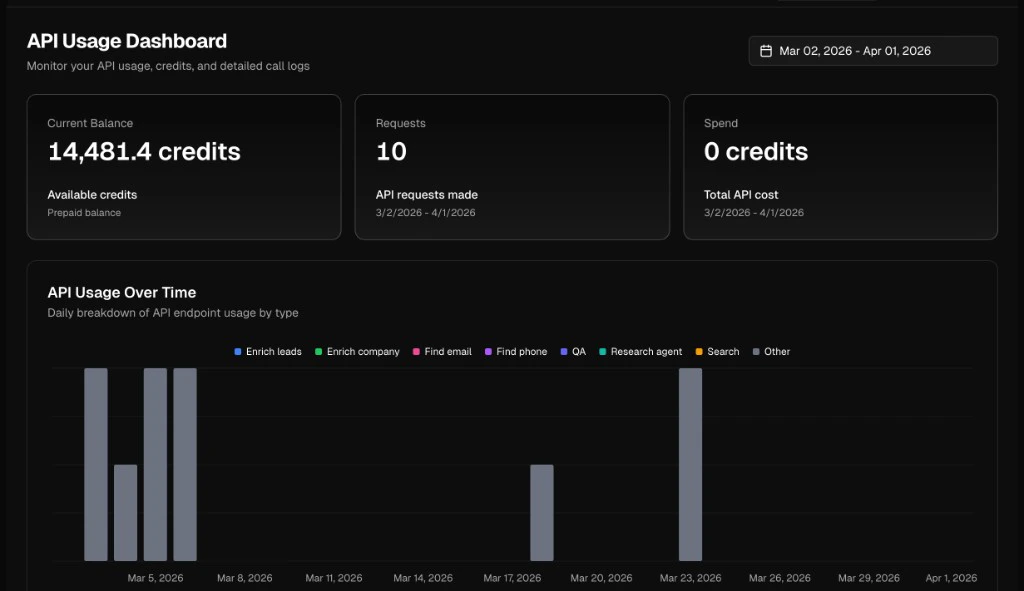
The dashboard displays three summary metrics and a time-series chart.
The API Usage Over Time chart breaks down daily request volume by endpoint type — People Intelligence, Company Intelligence, Find email, Find phone, QA, Research agent, Search, and others.
Use the date picker in the top right to adjust the time range.
API Call Logs
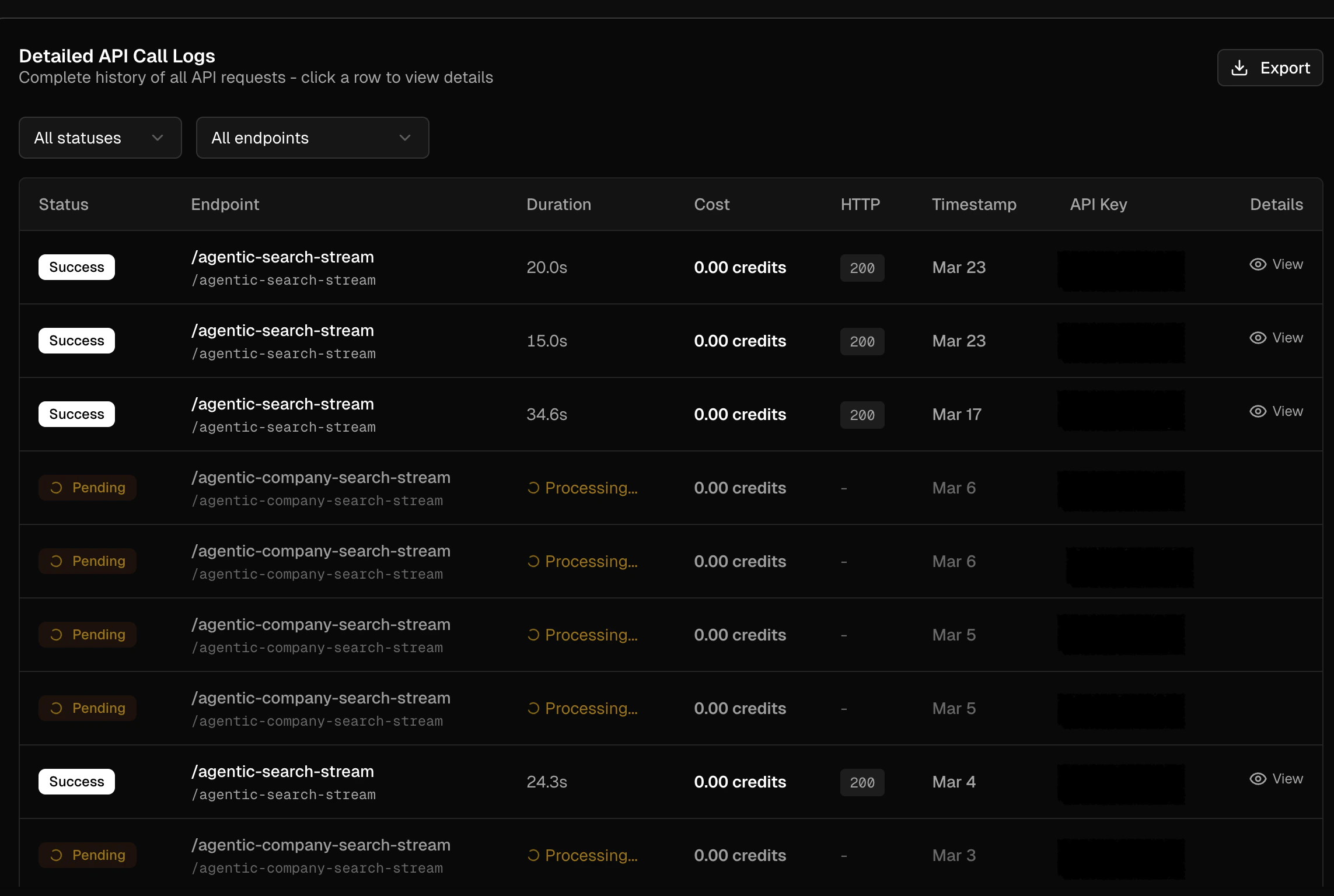
The Detailed API Call Logs table shows a complete history of every API request. Each row includes:Filtering Logs
Use the dropdown filters above the table to narrow results:- Status — filter by
Success,Pending, orError - Endpoint — filter by specific API endpoint
Exporting Logs
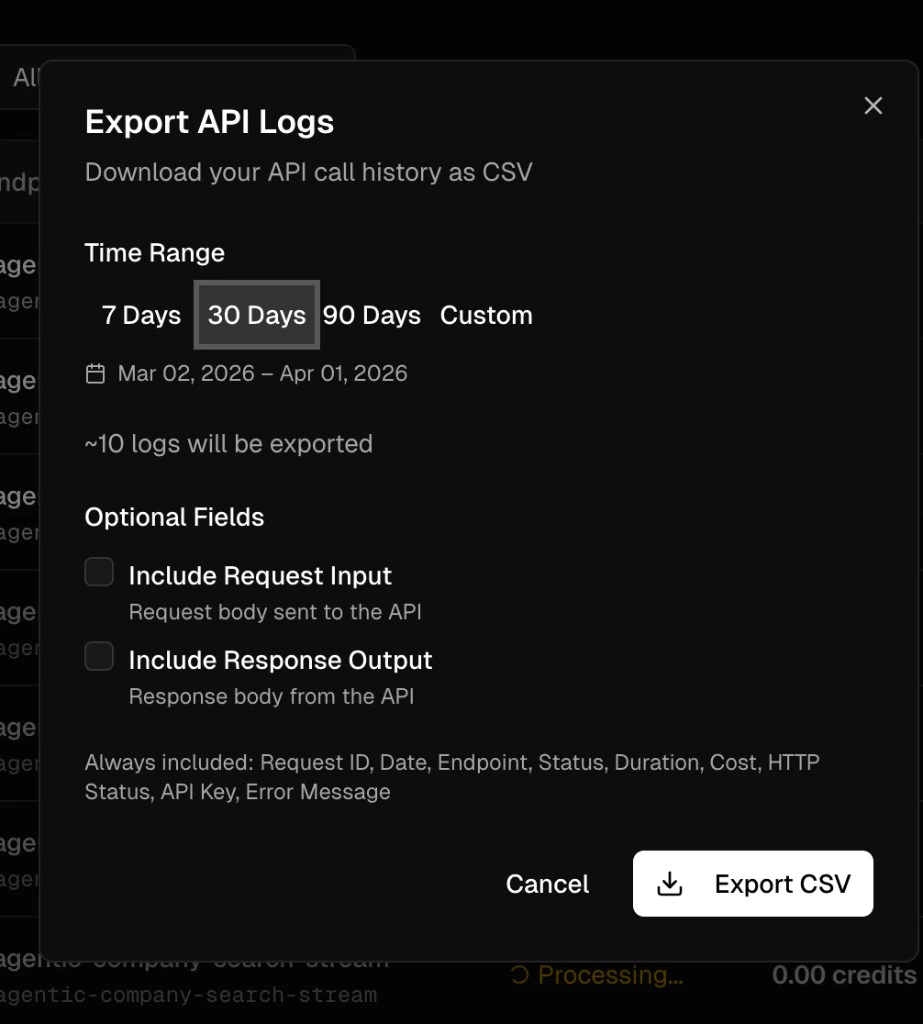
Click the Export button above the logs table to download your API call history as a CSV file. The export dialog provides the following options:Time Range
Select a preset range — 7 Days, 30 Days, 90 Days — or choose Custom to define a specific date window.Optional Fields
By default, exports include: Request ID, Date, Endpoint, Status, Duration, Cost, HTTP Status, API Key, and Error Message. You can add two optional fields:- Include Request Input — the request body sent to the API
- Include Response Output — the response body returned from the API