

What Sixtyfour reads
Sixtyfour signs in to Salesforce as the user who connects it and requests theapi, refresh_token, and openid scopes. Salesforce applies that user’s permissions and sharing rules, so Sixtyfour sees only what the user can see.
Sixtyfour reads Salesforce only when you connect, open the Import Data block, or run a workflow.
Before you start
- You need to be a Sixtyfour team admin to connect or disconnect Salesforce. Otherwise, ask a team admin to complete the setup.
- The Salesforce user needs the API Enabled permission and read access to Accounts and their owners.
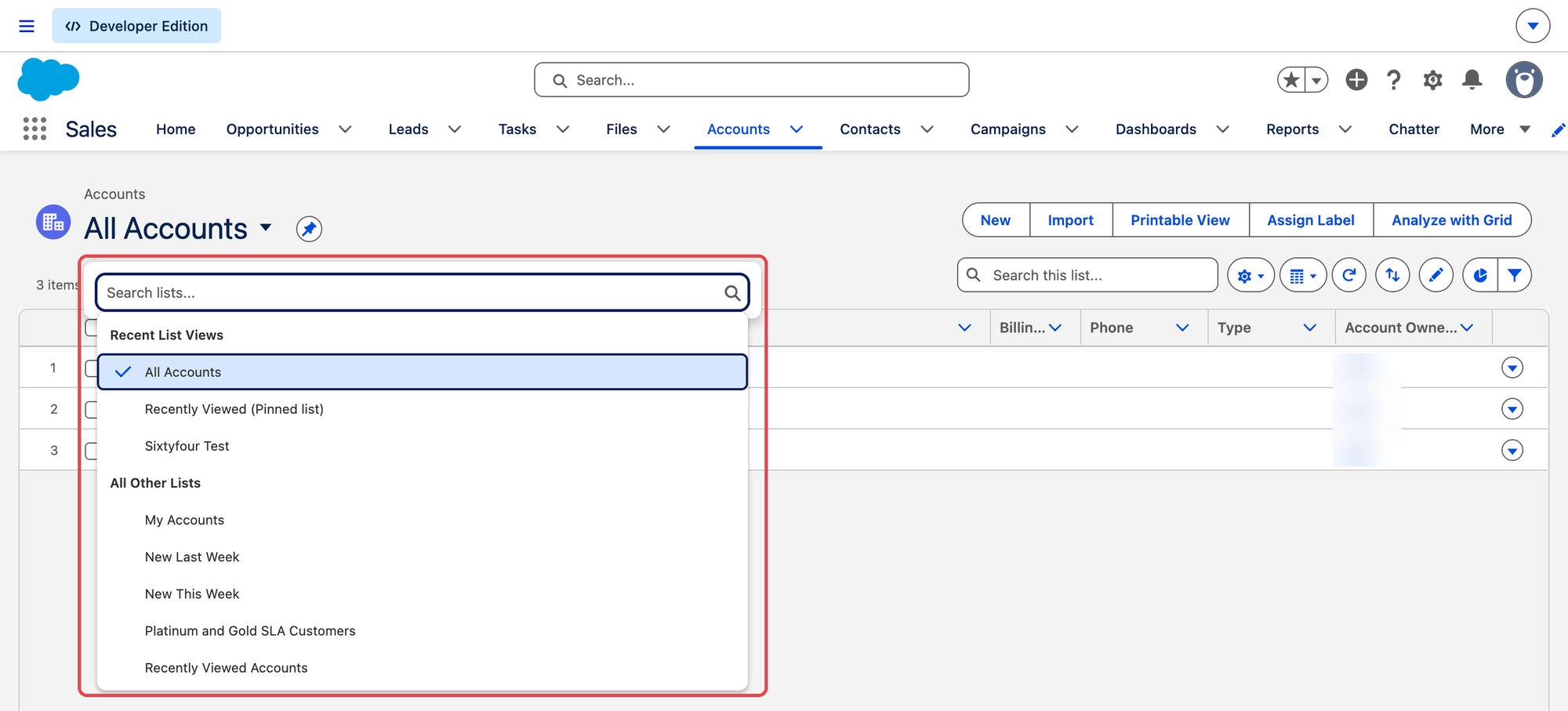
- Sixtyfour imports saved Account list views. Create the list in Salesforce first, with the filters you want, and make sure the connecting user can open it.
- Sixtyfour signs in through
login.salesforce.com, so connect a production or Developer Edition org. Sandbox orgs are not supported.
Connect Salesforce
1
Open the Salesforce integration
In the Sixtyfour dashboard, go to Settings → Integrations and select Salesforce.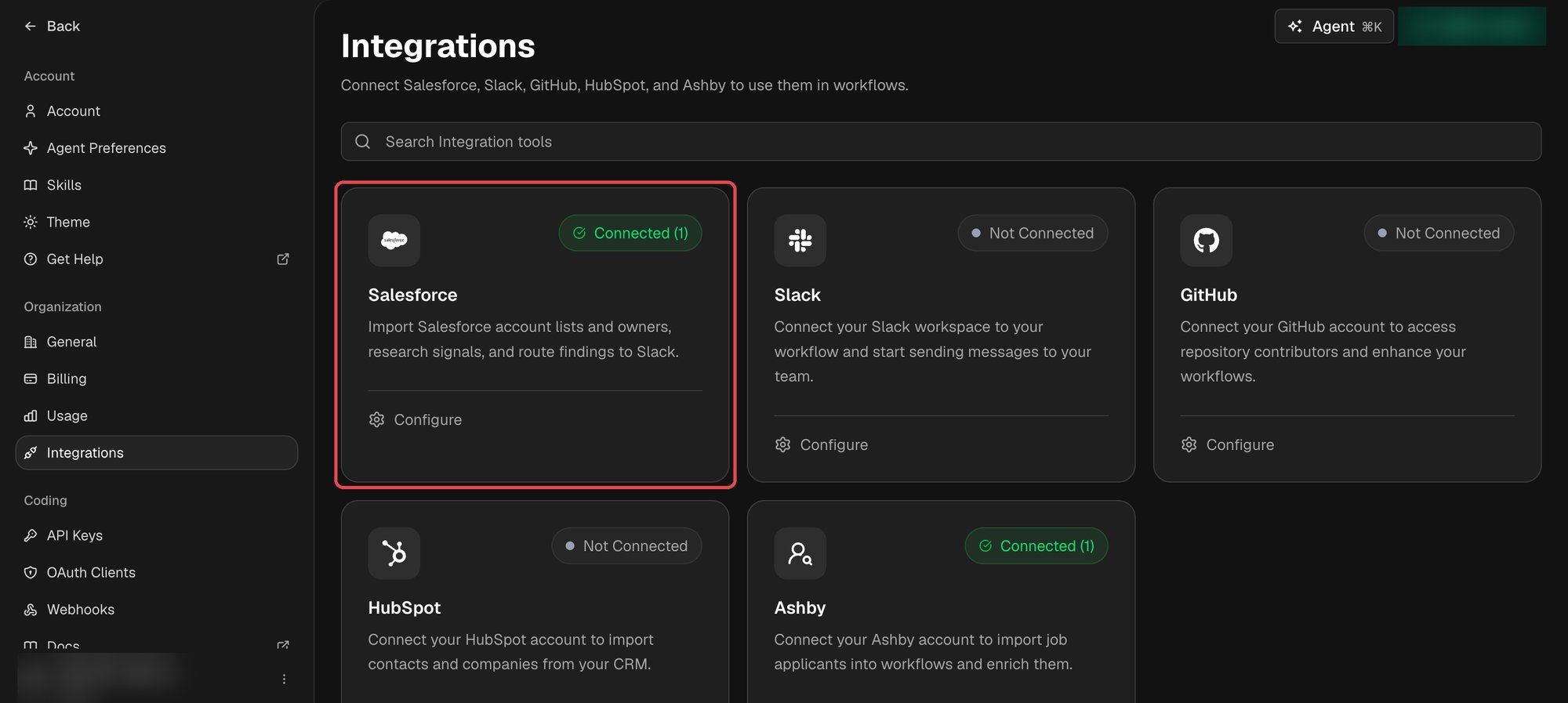
2
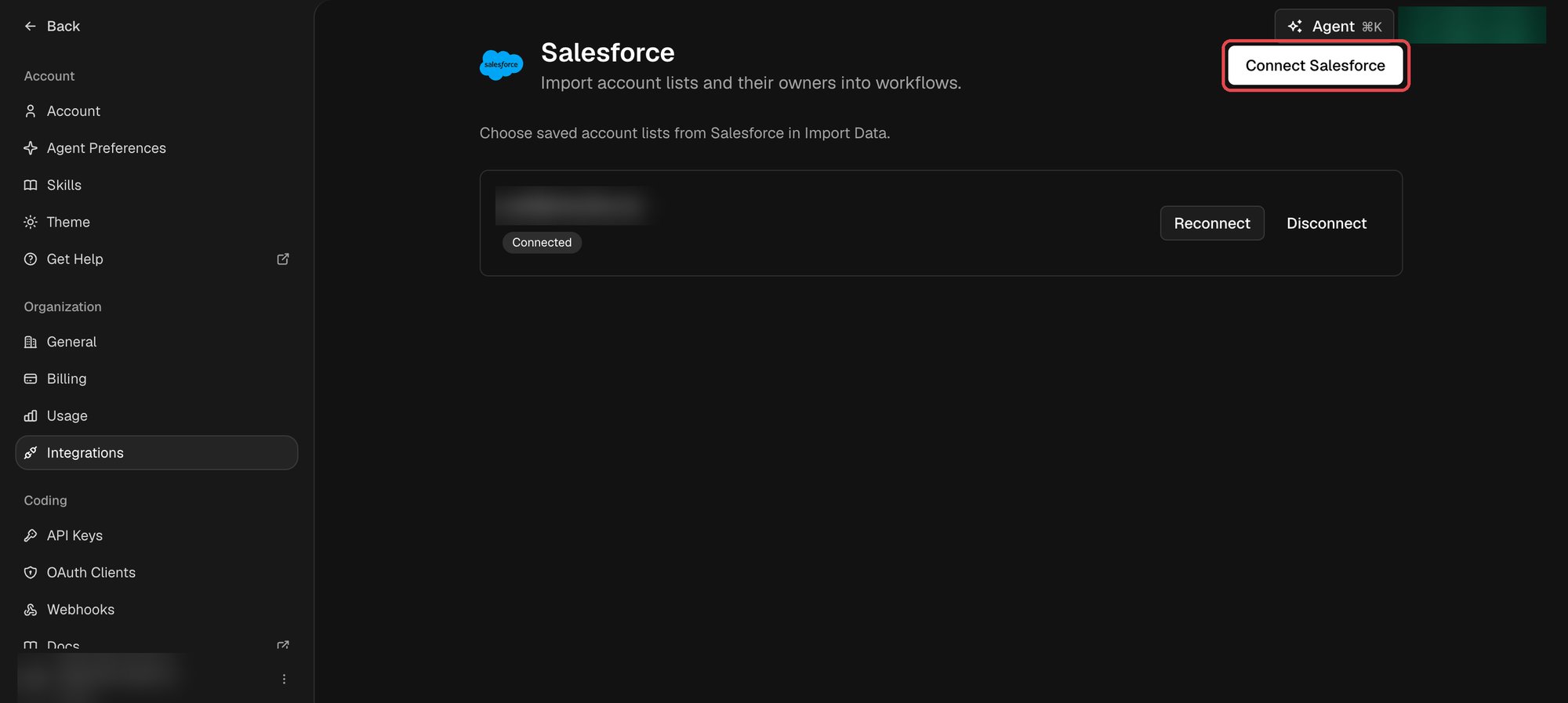
Click Connect Salesforce
3
Sign in and allow access
Sixtyfour opens the Salesforce sign-in page. Sign in as the user whose lists and permissions workflows should use. Salesforce may show a security warning above the request. Check that the page says Sixtyfour is asking to and that you started from Connect Salesforce, then click Allow. Finish within 10 minutes of clicking Connect Salesforce.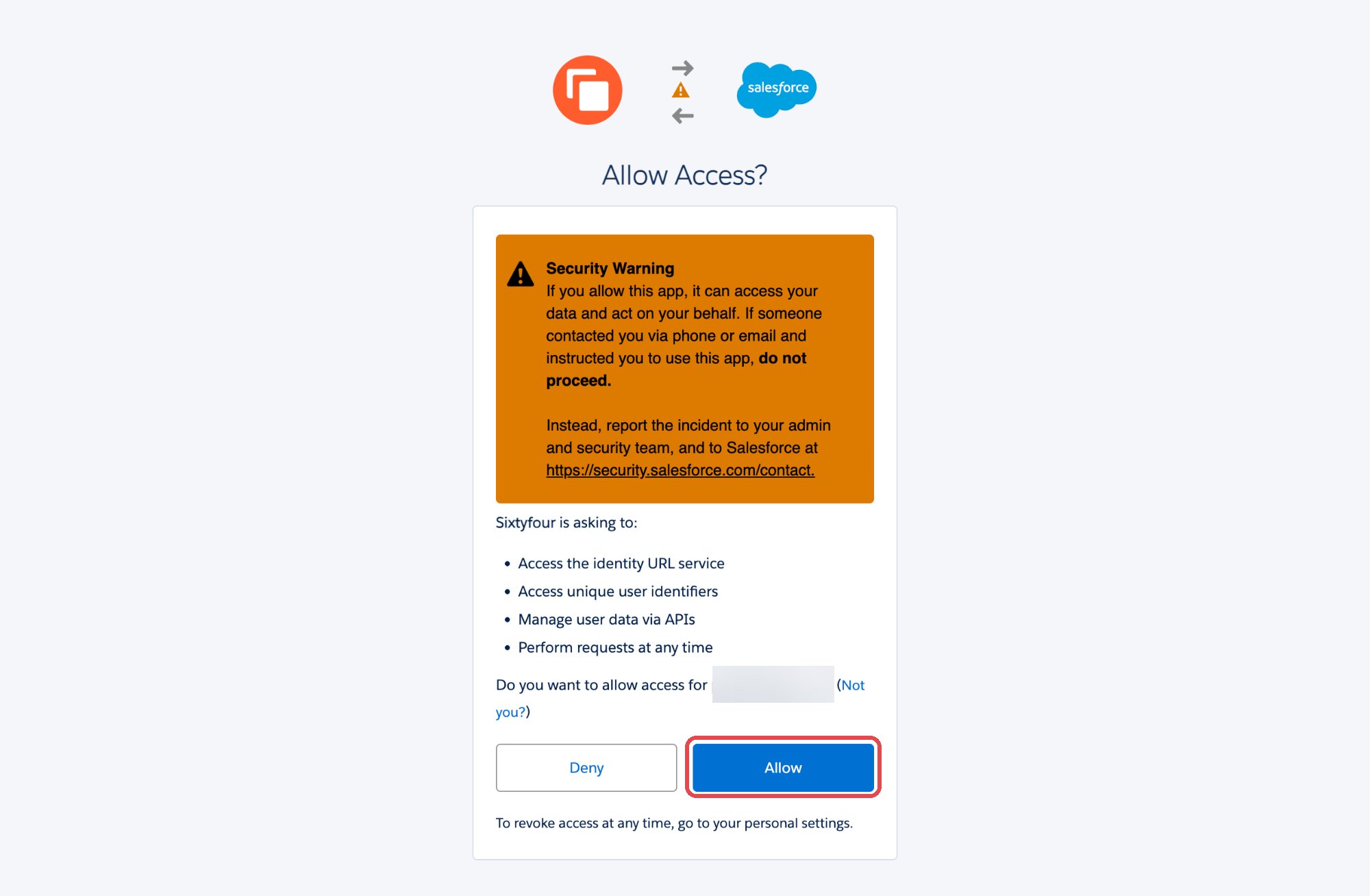
Imports run as the user who connected Salesforce. A list such as My Accounts returns that user’s accounts, not the accounts of the person running the workflow.
Import accounts into a workflow
1
Add an Import Data block
Open the Workflow Editor, add an Import Data block, and set Import from to Salesforce.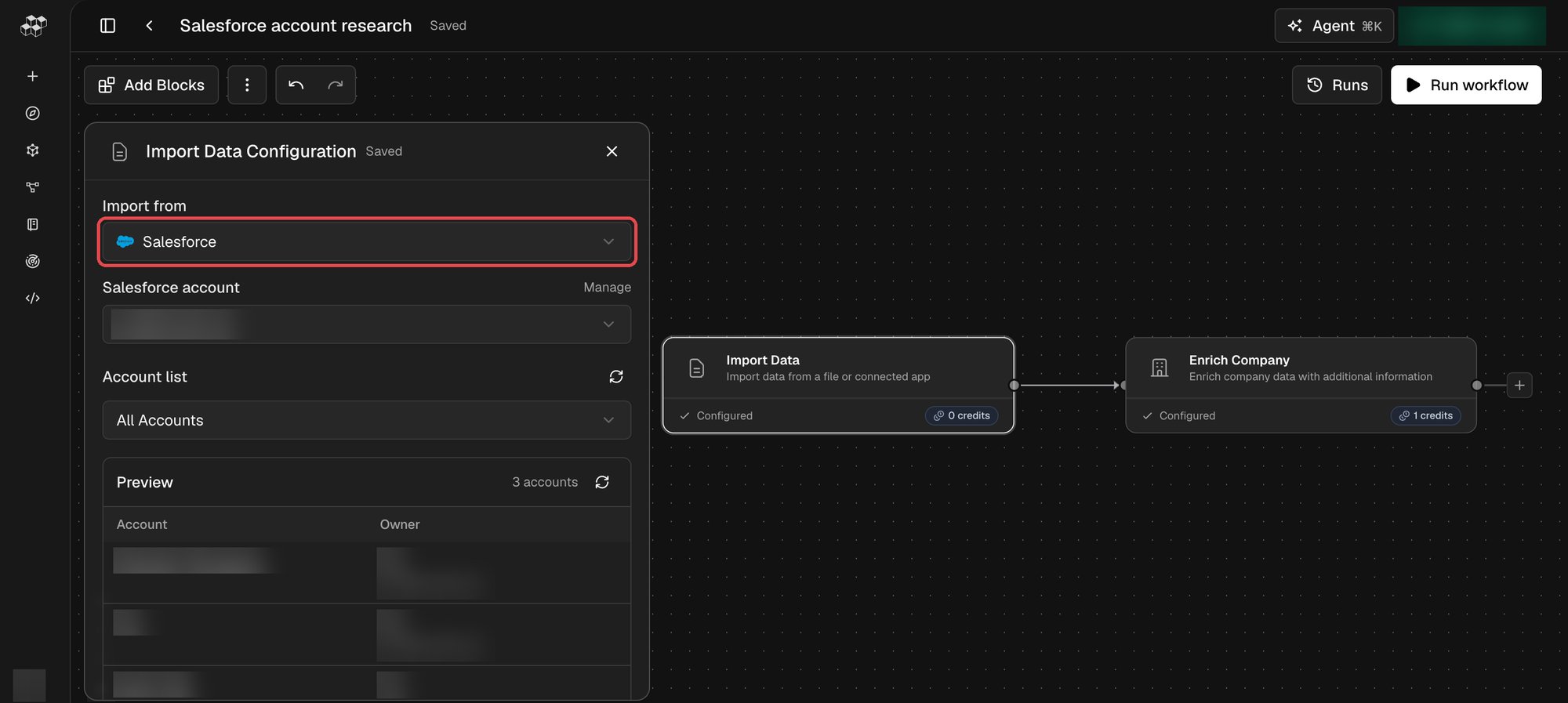
2
Choose the list
The block previews the first five accounts and shows how many accounts the list holds.
3
Add enrichment and output blocks
Each account becomes one Company row, so any company block can follow. A common pattern enriches the accounts and messages each owner in Slack, with DM email column in the Send Slack Message block set to
owner_email:4
Run the workflow
Run the workflow from the editor, or put it on a schedule. Each run imports the list’s current members with its current filters, so a scheduled workflow picks up new accounts as they join the list.
Imported columns
Disconnect Salesforce
- In Sixtyfour, go to Settings → Integrations → Salesforce and click Disconnect next to the connection.
- In Salesforce, open your personal settings, go to Advanced User Details, and click Revoke next to Sixtyfour under OAuth Apps.